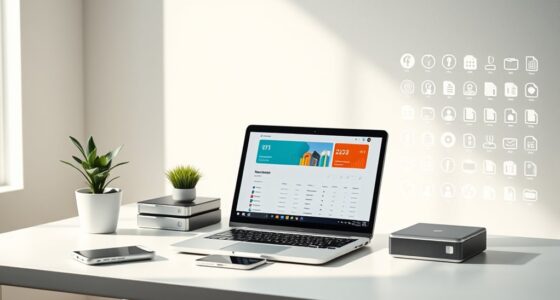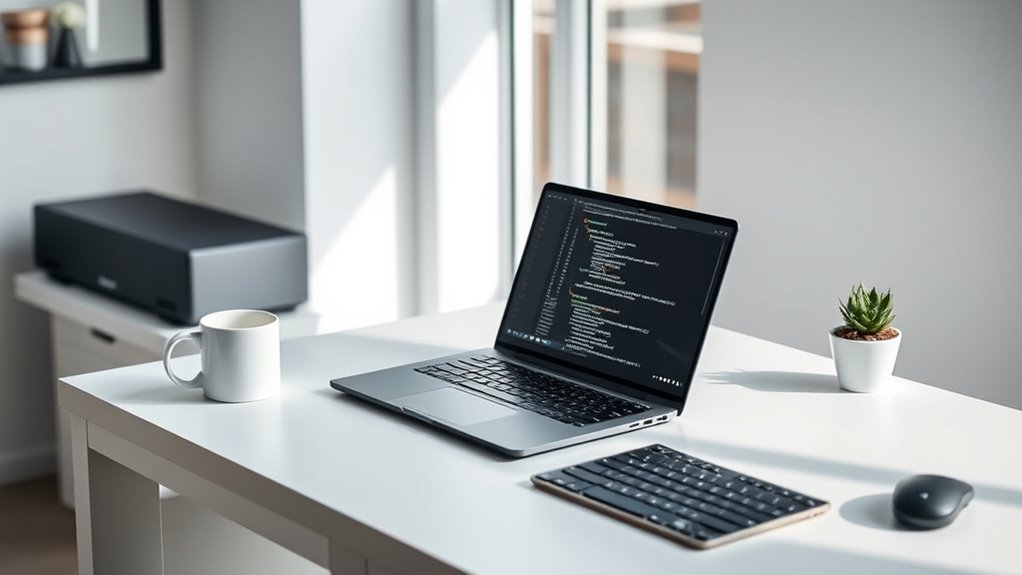

To create a minimalist coding environment, start by choosing a clean, easy-on-the-eyes color scheme and enabling a dark theme for reduced eye strain. Hide unnecessary toolbars and panels, keeping only essential elements like the editor and terminal visible. Customize keyboard shortcuts to streamline your workflow and avoid excess mouse movements. Use clear, readable fonts and adjust display settings for comfort. If you continue exploring, you’ll discover more tips to refine your distraction-free workspace.
Key Takeaways
- Opt for a dark, muted color scheme to reduce eye strain and differentiate syntax clearly.
- Hide or disable unnecessary toolbars, panels, and plugins to keep the interface clean.
- Customize keyboard shortcuts to perform common actions efficiently and minimize mouse use.
- Use clear, readable fonts and appropriate sizes to enhance code legibility and comfort.
- Regularly review and refine your setup to eliminate distractions and maintain an uncluttered workspace.

Have you ever felt overwhelmed by cluttered screens and unnecessary tools while coding? If so, creating a minimalist coding environment can help you focus on what truly matters—your code. The foundation of this setup involves streamlining your IDE or code editor to remove distractions and enhance productivity. Start by customizing your color scheme. Choose a palette that’s easy on your eyes, reducing eye strain during long coding sessions. Dark themes with muted tones or soft contrast colors can make your workspace less visually taxing and improve concentration. A well-chosen color scheme also helps differentiate syntax, making it easier to scan your code quickly without unnecessary visual noise.
Create a minimalist coding environment with a calming color scheme to reduce eye strain and improve focus.
Next, leverage keyboard shortcuts to boost your efficiency. Instead of reaching for your mouse or navigating menus, learn and customize shortcuts for common actions like saving files, toggling panels, or running code. This reduces mouse movement, keeps your hands on the keyboard, and minimizes interruptions. Many modern IDEs allow you to remap shortcuts or create custom ones tailored to your workflow. Mastering these shortcuts transforms your coding experience into a seamless, distraction-free process, allowing you to stay immersed in your work without breaking concentration.
Pairing a simple color scheme with optimized keyboard shortcuts helps you create a cohesive, minimalist environment. Keep your interface clean by hiding or disabling unnecessary toolbars, panels, or plugins that aren’t essential for your current project. For example, if you don’t need a file explorer open constantly, hide it. Focus only on the core components like the code editor, terminal, and debugging tools. This not only declutters your workspace but also reduces mental clutter, helping you think more clearly.
Adjusting your environment’s font size and type can also contribute to simplicity. Use a clear, readable font with sufficient size to prevent eye strain and make your code more legible. Avoid overly decorative fonts or excessive formatting, which can distract or slow you down. The goal is to keep your interface minimal, intuitive, and comfortable, enabling you to work for longer periods without fatigue. Additionally, understanding software customization options can help you tailor your environment to suit your specific coding needs.
Finally, establish a routine of regularly reviewing and refining your setup. As you become more familiar with your workflow, you’ll identify what’s essential and what can be eliminated. The minimalistic approach isn’t a one-time setup but an ongoing process of simplifying and optimizing. By focusing on essentials like a calming color scheme and efficient keyboard shortcuts, you’ll create a distraction-free environment that fosters deep concentration and productive coding sessions.

Logitech G413 SE Full-Size Mechanical Gaming Keyboard - Backlit Keyboard with Tactile Mechanical Switches, Anti-Ghosting, Compatible with Windows, macOS - Black Aluminum
Take your gaming skills to the next level: The Logitech G413 SE is a full-size keyboard with gaming-first...
As an affiliate, we earn on qualifying purchases.
Frequently Asked Questions
How Can I Customize Keyboard Shortcuts in a Minimalist IDE?
To customize keyboard shortcuts in your minimalist IDE, start by accessing the settings menu. Look for the keyboard remapping or shortcut customization option, often labeled as “Keybindings” or “Shortcuts.” You can then modify existing shortcuts or create new ones to suit your workflow. Save your changes, and your preferred shortcuts will be active, helping you code more efficiently without distractions.
Which Plugins Enhance Productivity Without Cluttering the Interface?
Think of your IDE as a sleek, uncluttered canvas. To boost productivity, choose plugins that act like brushstrokes enhancing your work without overwhelming the scene. Focus on essential features like code completion, version control, or syntax highlighting. Prioritize plugin selection that maintains interface simplicity, so your environment stays clean and distraction-free. This way, each plugin adds clarity and power, helping you code smoothly and efficiently without sacrificing the minimalist aesthetic.
How Do I Manage Version Control in a Distraction-Free Environment?
To manage version control in a distraction-free environment, focus on branch management and commit strategies. Use simple, descriptive branch names to organize your work clearly. Commit frequently with concise messages to track changes effectively. Leverage keyboard shortcuts or integrated VCS commands to stage, commit, and switch branches quickly without leaving your minimal workspace. This approach keeps your workflow smooth, minimizes clutter, and helps you maintain a clean, productive coding environment.
Can I Integrate Code Snippets Seamlessly Into a Minimalist Setup?
Yes, you can seamlessly integrate code snippets into your minimalist setup. Use code snippet management tools like snippet plugins or built-in features to organize and access your snippets quickly. With seamless snippet integration, you avoid clutter and distractions, allowing you to focus on your coding. Keep your snippets lightweight and straightforward, and assign shortcuts or triggers to insert them efficiently, maintaining your distraction-free environment while boosting productivity.
What Are the Best Practices for Maintaining Focus During Long Coding Sessions?
To maintain focus during long coding sessions, practice mindfulness techniques like deep breathing or brief meditation breaks. Keep your ergonomic workspace comfortable by adjusting your chair, monitor height, and keyboard position, reducing physical strain. Limit distractions by turning off notifications and using focus tools. Regular breaks help reset your mind, ensuring sustained concentration. Incorporating these habits into your routine boosts productivity and keeps you focused for longer periods.

Arteck 2.4G Wireless Keyboard Stainless Steel Ultra Slim Full Size Keyboard with Numeric Keypad for Computer/Desktop/PC/Laptop/Surface/Smart TV and Windows 10/8/ 7 Built in Rechargeable Battery
Easy Setup: Simply insert the nano USB receiver into your computer and use the keyboard instantly.
As an affiliate, we earn on qualifying purchases.
Conclusion
By embracing a minimalist coding environment, you channel the clarity of Da Vinci’s sketches, where every stroke matters. Strip away distractions and focus on what truly drives your creativity, much like a Zen master honing their mind. As in the silent depths of a monastic cell, your code becomes a meditation—pure, intentional, profound. Remember, simplicity isn’t just an aesthetic; it’s the quiet strength that transforms chaos into clarity, guiding you toward mastery.
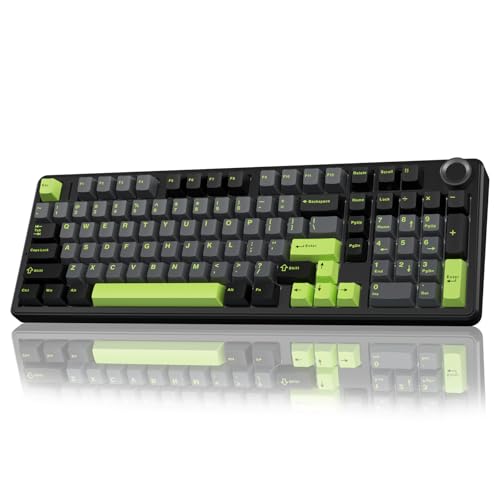
AULA F99 Pro Wireless Mechanical Keyboard with Knob,Creamy Sound,Tri-Mode BT5.0/USB-C/2.4GHz Hot Swappable Keyboard,Gasket Structure,RGB Backlit Computer Gaming Keyboards
Multi-Device Connection: AULA F99 Pro wireless mechanical keyboard provides three connection methods, including BT5.0, 2.4GHz wireless mode, and...
As an affiliate, we earn on qualifying purchases.

XPPen Drawing Tablet with Screen Full-Laminated Graphics Drawing Monitor Artist13.3 Pro Graphics Tablet with Adjustable Stand and 8 Shortcut Keys (8192 Levels Pen Pressure, 123% sRGB)
PLEASE NOTE:XPPen Artist13.3 Pro drawing tablet Need to connect with computer,you need to use it with your computer...
As an affiliate, we earn on qualifying purchases.