

If your work computer frequently slows down, crashes unexpectedly, or struggles with multiple tasks, it’s a sign it’s holding you back. Long startup times, insufficient storage, or strange noises point to hardware issues, especially as components age. Updating software can help, but persistent problems often mean hardware limits have been reached. Recognizing these signs early can save time and frustration—keep going to discover more ways to boost your productivity.

Get your wardrobe favorites delivered free with Prime
- Fast, free delivery on millions of items
- Prime Video, Amazon Music and more included
- Member-only deals all year
Key Takeaways
- Frequent slowdowns, crashes, or unresponsiveness indicate outdated hardware or software issues needing attention.
- Persistent lag during tasks suggests hardware limitations that hinder productivity and may require upgrades.
- Long boot times, slow file loading, and unusual noises are signs of aging hardware impacting performance.
- Software updates alone may not resolve performance issues caused by aging components or insufficient hardware capacity.
- Upgrading hardware, such as adding SSDs or more memory, can significantly improve speed and extend your device’s lifespan.
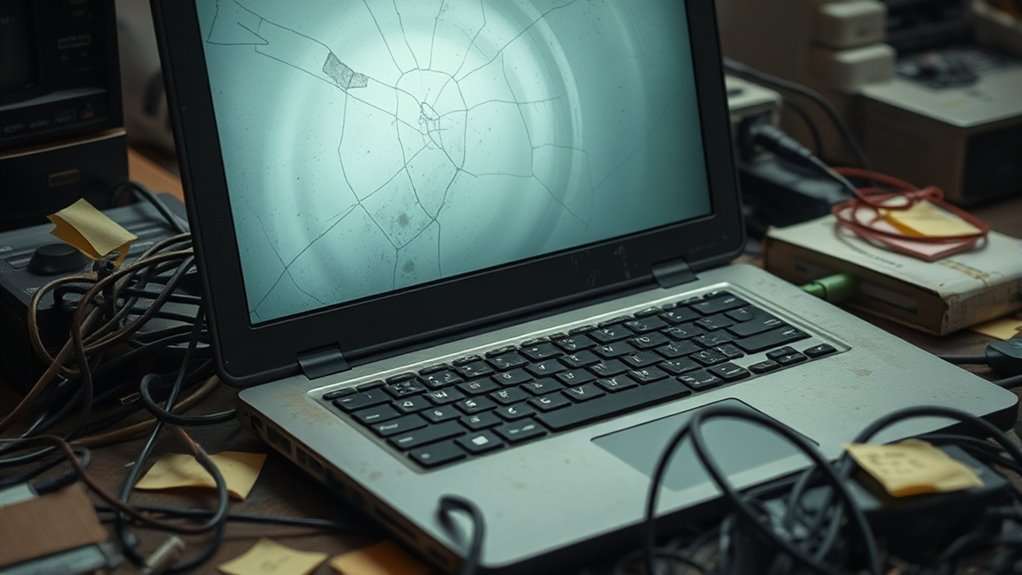
If your work computer feels sluggish or crashes unexpectedly, it might be more than just a minor inconvenience—it could be holding you back from being productive. When your device struggles to keep up with your tasks, it’s often a sign that it’s time to evaluate whether an upgrade is necessary. One of the first things to consider is whether your software is up to date. Sometimes, simply performing a software upgrade can improve performance by fixing bugs, optimizing processes, and adding new features that enhance efficiency. Developers release updates to address hardware limitations, so keeping your software current ensures you’re getting the most out of your existing hardware.
Updating your software can boost performance and fix bugs, helping your current hardware run more smoothly.
However, if even after updating the software, your computer continues to lag or freeze, the issue might stem from hardware limitations. Older machines often lack the processing power, memory, or storage capacity needed for modern applications. This means that no matter how many software updates you perform, your hardware might just be unable to handle newer demands. For example, running multiple heavy applications simultaneously can overwhelm a machine with limited RAM or an outdated processor, causing slowdowns and crashes. Over time, hardware components degrade or become incompatible with newer software, making upgrades more essential.
You should also pay attention to how your hardware components are performing. If your computer takes a long time to boot, files load sluggishly, or you hear strange noises from the machine, these are signs that your hardware might be nearing the end of its lifespan. A lack of sufficient storage space or an aging hard drive can considerably slow down your workflow. Upgrading to a solid-state drive (SSD) can make a dramatic difference, but if the hardware itself is too outdated, replacing the entire system might be the better choice. Hardware limitations can significantly impact overall performance and should be assessed regularly.
It’s easy to overlook the importance of a hardware upgrade when you’re focused on software, but they often go hand in hand. Upgrading your hardware can extend the lifespan of your device and improve performance, especially when paired with a software upgrade. If you’ve tried updating your software and cleaning up your system but still experience persistent issues, it’s likely time to think about a hardware upgrade. Recognizing these signs early can save you time and frustration, helping you work more efficiently without constant technical hiccups. Remember, investing in your tools is investing in your productivity, so don’t hesitate to seek upgrades when your current setup no longer meets your needs.
As an affiliate, we earn on qualifying purchases.
Frequently Asked Questions
How Often Should I Consider Upgrading My Work Computer?
You should consider upgrading your work computer every 3 to 5 years, especially if you notice software compatibility issues or sluggish performance. An outdated device might lack ergonomic design features that keep you comfortable during long work hours. Upgrading guarantees you stay efficient, secure, and comfortable, reducing frustrations caused by slow processing or hardware limitations. Don’t wait until your computer completely stalls—regular upgrades keep your workflow smooth and your workstation ergonomic.
Can a Slow Computer Affect My Productivity Significantly?
A slow computer can markedly hurt your productivity by causing hardware bottlenecks and software compatibility issues. When your device struggles to run programs smoothly, you waste time waiting for tasks to complete or troubleshooting errors. This frustration decreases efficiency and can lead to missed deadlines. Upgrading your hardware or optimizing software can help eliminate these problems, ensuring you work faster and more effectively without unnecessary delays.
What Are the Costs Associated With Upgrading My Work Computer?
The costs of upgrading your work computer include hardware compatibility, upgrade budgeting, and potential downtime. You might need to invest in new components, software licenses, or peripherals, which can add up quickly. Budgeting wisely helps you avoid overspending, while ensuring hardware compatibility guarantees smooth performance. Consider these costs carefully to make an informed decision, balancing your needs against your budget for a seamless shift.
How Do I Determine if My Current Hardware Is Outdated?
You can determine if your hardware is outdated by checking its compatibility with the latest software requirements. If your computer struggles to run new programs or crashes frequently, it’s a sign. Additionally, verify if your hardware meets current standards for speed and storage. Outdated hardware often can’t keep up with software updates, so if you notice lag or compatibility issues, it’s time to contemplate an upgrade.
Are There Benefits to Upgrading Beyond Just Speed Improvements?
Upgrading your computer offers benefits beyond just speed. You’ll enjoy better software compatibility, ensuring new programs run smoothly without crashes. Plus, newer models often come with ergonomic improvements, like adjustable stands and better keyboards, reducing fatigue during long work hours. This isn’t just an upgrade; it’s like transforming your workspace into a powerhouse of productivity, making every task feel like a breeze and helping you work smarter, not harder.
As an affiliate, we earn on qualifying purchases.
Conclusion
If your computer keeps slowing you down, it’s a clear sign it’s time to upgrade. Don’t let outdated tech hold you back from your best work. Remember, a chain is only as strong as its weakest link—so invest in better tools to stay efficient and competitive. Upgrading now can save you time, frustration, and even future costs. Stay ahead of the game—your future self will thank you for it.
As an affiliate, we earn on qualifying purchases.
As an affiliate, we earn on qualifying purchases.
Halloween Picks
halloween
As an affiliate, we earn on qualifying purchases.