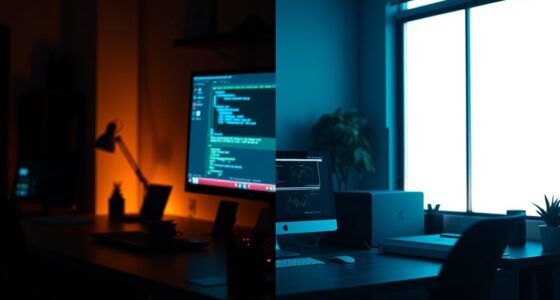

Choosing between a virtual background and a real office helps you appear professional and keep things simple during video calls. A real office offers authenticity, reduces glitches, and shows organization, while virtual backgrounds give flexibility and can hide clutter. For a polished look, keep your environment tidy and use virtual backgrounds only if lighting and tech are ideal. Want tips on creating a clean, professional setup? Keep going to discover how to make your environment work best for you.
Open a free Amazon Business account
Business pricing, bulk buying and tax-exempt orders.
As an affiliate, we earn on qualifying purchases.
Key Takeaways
- Use a real, tidy office space for authenticity and minimal technical issues during professional video calls.
- Opt for virtual backgrounds only when lighting and system capabilities are optimal to avoid glitches.
- Keep backgrounds simple and clutter-free to maintain focus and project professionalism.
- Enhance audio quality with noise-canceling headphones and a quiet environment, regardless of background choice.
- Select a background that reflects your personality or brand, supporting clear communication and a polished appearance.

Have you ever wondered how to make your video calls more engaging or professional? The key often lies in your background. Whether you choose a virtual background or set up a real office, your environment can considerably influence how colleagues and clients perceive you. A well-thought-out office decor can elevate your presence, making you look polished and prepared. On the other hand, cluttered or distracting backgrounds can undermine your professionalism. Think of your background as an extension of your workspace—clean, organized, and aligned with your brand or personal style. A simple backdrop that reflects your personality or company’s ethos helps create a sense of trust and credibility. If you’re working from home, consider investing in a tidy, well-lit corner with minimal distractions, so your background complements your message without pulling focus.
However, even with a stylish office decor, background noise remains a challenge. Background noise can quickly diminish the quality of your video call, making it hard for others to hear you clearly. When you’re in a noisy environment, your voice can get lost or garbled, which hampers effective communication. Using noise-canceling headphones or a dedicated quiet space can help mitigate this issue. If you can’t control the noise, virtual backgrounds offer a neat solution. They can mask distracting elements behind you, presenting a clean, professional look regardless of your actual environment. But keep in mind, virtual backgrounds aren’t foolproof—they can glitch or become distorted if your lighting isn’t ideal or your computer struggles to process them. It’s best to test your setup beforehand to ensure your chosen virtual background looks natural and doesn’t distract viewers. Additionally, understanding your environmental setup can help you optimize your background and audio for better communication.
Choosing between a real office setup and a virtual background ultimately depends on your circumstances, but simplicity often wins. A clutter-free, well-lit real office creates authenticity and minimizes technical hiccups, especially if background noise is manageable. Conversely, virtual backgrounds allow flexibility and can instantly mask untidy spaces or external distractions, making your environment appear more controlled. Whichever option you pick, prioritize clarity and professionalism. Keep your office decor neat, avoid visual clutter, and ensure your microphone quality is good enough to cut through background noise. Remember, the goal is to communicate effectively, and your background should support that, not hinder it. With a thoughtful approach, your video calls can project confidence and professionalism, whether you’re in a sleek office or a carefully curated virtual environment.

Soundcore by Anker Q20i Hybrid Active Noise Cancelling Headphones, Black
- Hybrid Noise Cancelling: Reduces up to 90% external noise
- Detailed Audio Quality: 40mm drivers with BassUp technology
- Long Battery Life: 40 hours with ANC, 60 hours normal mode
As an affiliate, we earn on qualifying purchases.
As an affiliate, we earn on qualifying purchases.
Frequently Asked Questions
How Do I Change My Virtual Background During a Call?
To change your virtual background during a call, first access your video conferencing app’s background customization options. In most platforms, click the arrow next to your video icon and select “Virtual Background” or “Background Settings.” From there, choose a new image or upload your own for your virtual setup. This quick adjustment helps keep your video calls professional and simple, enhancing your virtual presence effortlessly.
Are Virtual Backgrounds Compatible With All Video Conferencing Platforms?
Imagine you’re on a Zoom call, and your virtual background works perfectly, but when switching to Microsoft Teams, it disappears. Virtual backgrounds aren’t compatible with all platforms due to background compatibility and platform limitations. Some, like Zoom and Google Meet, support virtual backgrounds effortlessly, while others may not. Always check your platform’s specifications first to guarantee smooth use and avoid surprises during important calls.
What Are the Best Practices for Professional Virtual Backgrounds?
To make certain professional virtual backgrounds, choose images that reflect your office decor and promote brand consistency. Opt for simple, clutter-free backgrounds with neutral colors or subtle branding elements, avoiding distractions. Test your background beforehand to verify clarity and proper lighting. Keep your appearance professional, and confirm your virtual background complements your setting without overpowering it. This approach helps maintain a polished, consistent, and professional look during video calls.
Can Virtual Backgrounds Improve Meeting Engagement?
Yes, virtual backgrounds can improve meeting engagement by reducing distractions and creating a more professional environment. They offer benefits like setting a consistent tone and showcasing creativity. To boost engagement further, combine virtual backgrounds with meeting strategies such as interactive questions and clear agendas. This approach keeps participants focused, encourages participation, and makes your meetings more dynamic and effective.
How Do I Ensure My Virtual Background Looks Realistic?
To guarantee your virtual background looks realistic, start with a good lighting setup—natural or soft, even light helps avoid shadows. Choose a background that matches your environment and isn’t overly busy, which enhances authenticity. Test your setup beforehand, adjusting lighting and background selection to reduce glare or mismatched edges. Clear, consistent lighting and a well-chosen background help create a seamless, professional appearance during your video calls.

YYNXSY 7X5FT Office Backdrop with Window Background for Video Conference Photography Studio Backdrop Screen Vinyl Material for Holiday Party Birthday Party Room Decoration YY-1003
- Size and Quality: 7×5 feet professional backdrop
- High Resolution Printing: Realistic, detailed digital images
- Lightweight and Easy to Install: Vinyl material for quick setup
As an affiliate, we earn on qualifying purchases.
As an affiliate, we earn on qualifying purchases.
Conclusion
Choosing between a virtual background and a real office is like tending a garden—you want a space that’s neat, professional, and true to your style. A tidy, simple background, whether real or virtual, keeps the focus on you, not your surroundings. Remember, your background sets the scene for your professionalism. Keep it uncluttered and genuine, so your message shines through like a clear, sunny day—bright, inviting, and trustworthy.
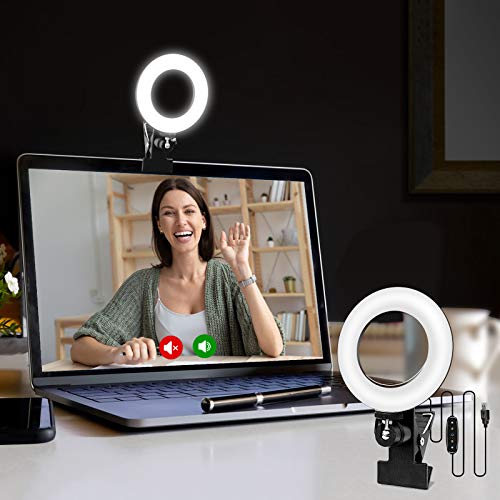
Cyezcor Video Conference Lighting Kit, Ring Light for Monitor Clip On
- Adjustable Color Temperature: 3200K-6800K with 3 modes
- Brightness Levels: 5 adjustable brightness settings
- High-Quality LED Beads: 48 LEDs with 10W brightness
As an affiliate, we earn on qualifying purchases.
As an affiliate, we earn on qualifying purchases.

WALI Desk File Organizer, 4 Tier Desktop Paper Letter Tray Organizer with Drawer and 2 Pen Holders, Office Desk Accessories & Workspace Organizers for Office, Home Supplies(DO005DH-B), 1 Pack, Black
- All-in-One Desk Organizer: Includes 4 letter trays, drawer, and pen holders
- Premium Metal Construction: Made from thickened steel wire mesh for durability
- Space-Saving Design: Vertical file organizer and tiered trays maximize space
As an affiliate, we earn on qualifying purchases.
As an affiliate, we earn on qualifying purchases.
College move-in / dorm season Picks
dorm essentials
As an affiliate, we earn on qualifying purchases.