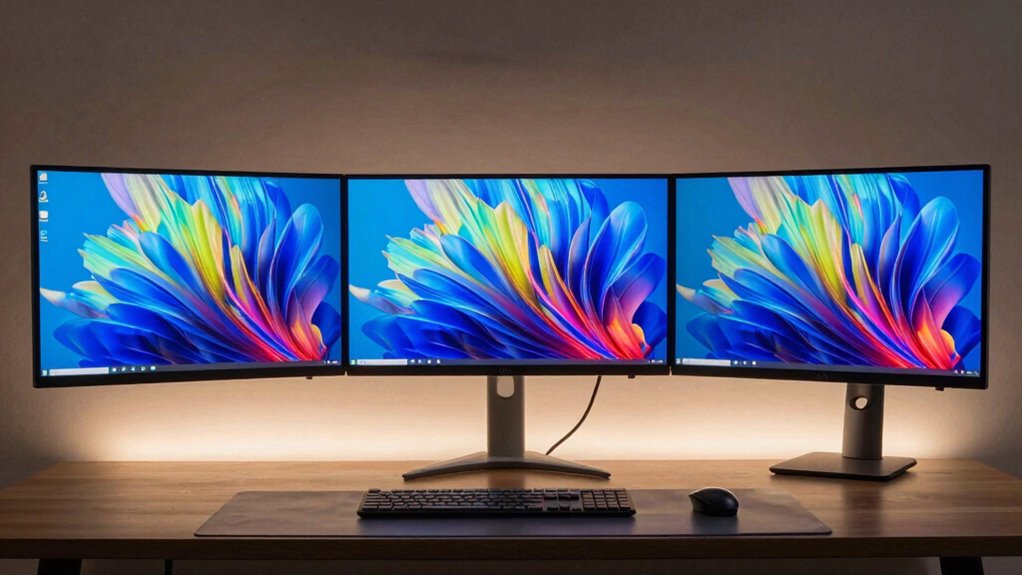

Choosing between a single monitor and an ultrawide for coding depends on your workflow. An ultrawide gives you more horizontal space, making multitasking and monitoring multiple windows seamless. It can boost productivity but may cost more and require better hardware. A single monitor offers simplicity and affordability, ideal if you prefer focused, dedicated workspaces. To discover which setup suits your needs best and how to optimize your workspace, keep exploring options.

Get your wardrobe favorites delivered free with Prime
- Fast, free delivery on millions of items
- Prime Video, Amazon Music and more included
- Member-only deals all year
Key Takeaways
- Ultrawide monitors provide more horizontal space for multitasking and viewing multiple code windows simultaneously.
- Single monitors are more affordable and easier to set up, suitable for simpler or budget-conscious coding environments.
- Ultrawide setups enhance workflow efficiency during debugging and monitoring logs, reducing window switching.
- Ergonomics and workspace compatibility may vary; ultrawide monitors can be overwhelming or awkward on certain desks.
- Choice depends on coding complexity, multitasking needs, and budget for an optimal, tailored workspace.
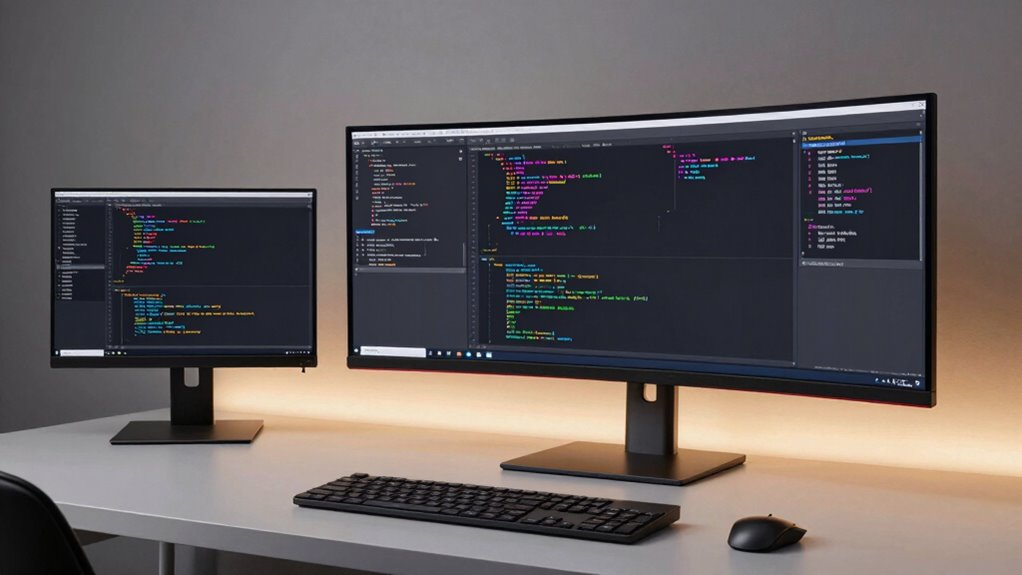
Choosing the right monitor setup can considerably impact your productivity and comfort while coding. When deciding between a single monitor and an ultrawide, you need to contemplate how each setup influences your screen real estate and multitasking efficiency. A single monitor, typically standard-sized, offers a clear, focused workspace. It’s straightforward to set up and usually more affordable, making it a good choice if you’re working within a tight budget or have limited desk space. However, its screen real estate can be limited, which might force you to switch between multiple windows or use multiple virtual desktops. This constant toggling can slow you down and interrupt your workflow, especially during complex tasks that demand referencing several sources or tools simultaneously.
On the other hand, an ultrawide monitor presents a broader canvas, giving you more horizontal space to spread out your work. This increased screen real estate can notably boost your multitasking efficiency because you can have multiple windows open side by side without constantly resizing or switching between them. For example, you could have your code editor on one side, a browser with documentation on the other, and a terminal window beneath them—all visible at once. This setup minimizes distractions caused by window management and allows you to maintain focus on your tasks. The seamless view also encourages a more natural workflow, especially during debugging or when monitoring logs and outputs in real time. Additionally, ultrawide monitors often provide fewer visual distractions, helping you stay more focused on your work.
However, ultrawides aren’t without their challenges. They can be more expensive and may require more powerful graphics hardware to run smoothly. Also, not all applications are optimized for ultrawide resolutions, which can sometimes lead to display issues or black bars. Furthermore, some users find the wider aspect ratio overwhelming or awkward on certain desk setups and find that it takes time to adjust to the wider view. It’s also worth noting that ergonomic comfort can vary depending on your desk configuration, making it important to consider how the monitor fits into your workspace. In addition, understanding the compatibility with software can be crucial because some development tools and interfaces might not adapt well to ultrawide displays, potentially affecting your workflow.
Ultimately, your choice hinges on your workflow preferences and specific needs. If you prioritize having separate, dedicated spaces for different tasks and don’t mind switching between windows, a single monitor might suffice. But if multitasking and having all your tools visible at once matter most, an ultrawide enhances your screen real estate and boosts efficiency. Think about how you work daily, the kind of projects you handle, and your budget—these factors will guide you toward the best setup for your coding environment.
As an affiliate, we earn on qualifying purchases.
Frequently Asked Questions
How Does Eye Strain Compare Between Single Monitor and Ultrawide Setups?
You’ll likely experience less eye strain with an ultrawide setup because it offers a broader viewing area, reducing the need to constantly shift your gaze. An ultrawide monitor with good color accuracy and ergonomic design can also minimize eye fatigue and discomfort. In contrast, a single monitor might cause more strain if it’s smaller or poorly positioned. Prioritize ergonomic features and color accuracy to keep your eyes comfortable during long coding sessions.
Are There Compatibility Issues With Ultrawide Monitors on All Computers?
Ultrawide monitors can face compatibility issues with some computers, especially older models, due to aspect ratio compatibility and monitor calibration. You might need to update your graphics drivers or adjust display settings to guarantee proper functioning. Check your system’s specifications and your monitor’s compatibility details before purchasing. Modern computers typically support ultrawide aspect ratios, but verifying these factors helps prevent connectivity or display problems.
Which Monitor Type Offers Better Multitasking for Coding Projects?
An ultrawide monitor offers better multitasking for coding projects because of its seamless screen real estate advantages. You can view multiple windows side by side without the bezels interrupting your workflow. While multi monitor flexibility allows you to customize your setup, an ultrawide provides a more integrated experience, reducing the need to switch between screens. This setup helps you stay focused and boosts productivity during complex coding tasks.
How Do Ultrawide Monitors Impact Gaming or Media Consumption?
Ultrawide monitors considerably enhance your gaming and media experiences by providing an immersive experience, thanks to their expansive screen real estate. You’ll enjoy seamless visuals, better peripheral awareness, and a more engaging atmosphere. Whether you’re playing immersive games or watching movies, the wider display reduces the need to switch between windows, making your media consumption more fluid and enjoyable. Overall, ultrawide monitors elevate entertainment by maximizing immersion and visual coverage.
What Are the Cost Differences Between Single and Ultrawide Monitors?
You’ll find ultrawide monitors generally cost more than single monitors, especially high-quality models with precise color calibration and ergonomic adjustments. While a standard single monitor might be more budget-friendly, ultrawides demand a bigger investment upfront. Keep in mind, the additional expense often reflects better immersive experience, larger workspace, and customizable ergonomics, making them worth it if your coding setup benefits from more screen real estate and precise display features.
As an affiliate, we earn on qualifying purchases.
Conclusion
Choosing between a single monitor and an ultrawide for coding is like deciding between a focused spotlight and a panoramic view. A single monitor keeps things simple, while an ultrawide offers a sprawling canvas for multitasking. Think of it as the difference between a sharp arrow and a broad, sweeping horizon. Ultimately, pick what aligns with your workflow—either way, you’ll have a powerful tool to help you code more efficiently and comfortably.
dual monitor setup for developers
As an affiliate, we earn on qualifying purchases.
As an affiliate, we earn on qualifying purchases.
best monitor for multitasking coding
As an affiliate, we earn on qualifying purchases.
As an affiliate, we earn on qualifying purchases.
Halloween Picks
halloween
As an affiliate, we earn on qualifying purchases.