
To reduce Zoom fatigue, keep your virtual backgrounds simple and clutter-free to lessen visual distractions and mental clutter. Position your camera at eye level for a natural, engaging look that promotes better posture and comfort. Use a neutral or subtle background to minimize cognitive load and avoid overload. Additionally, manage your environment with good lighting and a tidy space. Applying these minimalist practices can help you stay focused and conserve energy during calls—continue for more tips.

Get your wardrobe favorites delivered free — and shop member deals
- Fast, free delivery on millions of items
- Access to Prime Big Deal Days deals on October 6–7
- Prime Video, Amazon Music and more included
Key Takeaways
- Use clutter-free, neutral virtual backgrounds to minimize visual distractions and reduce mental clutter during calls.
- Position your camera at eye level to improve posture, engagement, and prevent neck strain.
- Limit the number of simultaneous meetings to reduce mental fatigue from constant switching.
- Ensure proper lighting and framing to focus attention and decrease effort in visual processing.
- Incorporate regular breaks and stretch to alleviate physical discomfort and mental exhaustion.
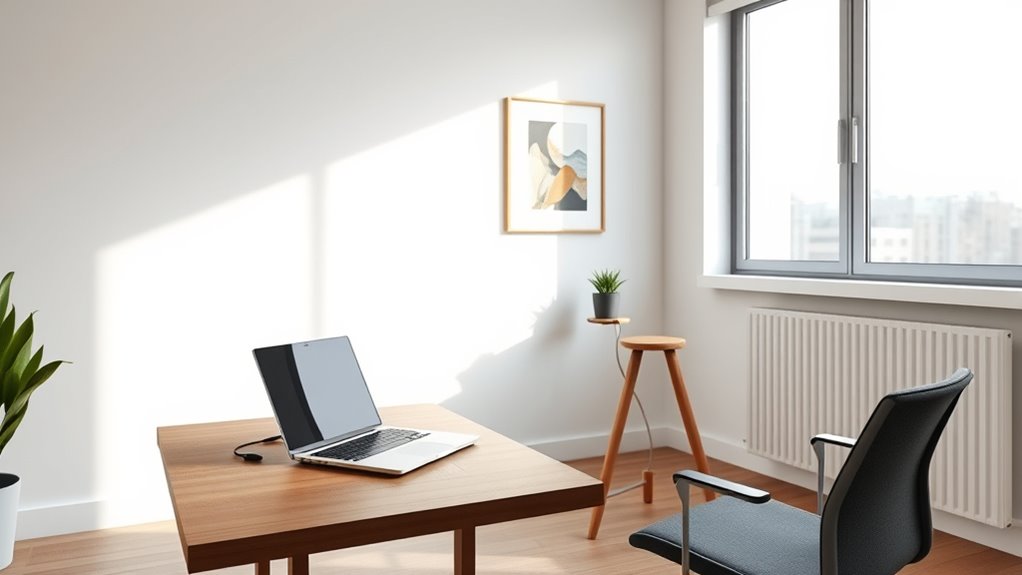
Have you ever felt exhausted after back-to-back Zoom meetings? It’s a common experience, often fueled by the mental effort required to stay engaged through a screen. To combat this, consider simple, minimalist practices that can make your virtual interactions less draining. One effective strategy involves optimizing your virtual background and camera positioning. When you choose a clutter-free, neutral virtual background, you reduce visual distractions for yourself and others. This not only helps you appear more professional but also minimizes the mental clutter caused by trying to focus on a busy or distracting background. Keep your virtual background clean and simple, or even better, use a plain color or a subtle image that doesn’t compete for attention. This way, your mind isn’t overloading on visual stimuli, which can contribute to fatigue. Additionally, being aware of your privacy preferences ensures you control what information you share and what remains private during video calls.
Camera positioning is equally important. Position your camera at eye level to create a natural, comfortable viewing angle. Looking slightly downward or upward at your screen can cause neck strain and make your posture uncomfortable, which adds to your fatigue. When your camera is at eye level, you maintain better posture, reducing physical discomfort and making interactions feel more genuine and less strained. Ensuring your face is well-lit and centered in the frame also helps keep the focus on you, making conversations more engaging without extra effort. Avoid sitting too far from or too close to your camera, as this can distort your appearance or make it difficult to maintain eye contact, both of which add to your mental fatigue.
As an affiliate, we earn on qualifying purchases.
Frequently Asked Questions
How Can I Improve My Camera Quality for Better Video Calls?
To improve your camera quality, focus on good lighting and a clean background setup. Use natural light or invest in soft, diffused lighting to brighten your face without harsh shadows. Position your camera at eye level for a more natural look. Keep your background simple and clutter-free to avoid distractions. These minimalist camera lighting and background setup tips will make your video calls clearer and more professional.
What Accessories Can Reduce Physical Strain During Long Meetings?
You can reduce physical strain during long meetings by using an ergonomic chair and an adjustable desk. An ergonomic chair supports your back and promotes good posture, preventing aches. An adjustable desk lets you switch between sitting and standing, reducing fatigue. Consider adding a footrest or monitor stand to improve alignment. These accessories help you stay comfortable and focused, minimizing discomfort and making your video calls more productive.
Are There Specific Software Settings to Minimize Eye Strain?
Did you know that 60% of people experience digital eye strain? To minimize eye strain, adjust your software settings for comfort. Lower your screen brightness to match ambient light, and enable blue light filters or night mode during calls. These adjustments reduce glare and blue light exposure, helping you stay comfortable and focused. Regularly taking breaks also helps, but optimizing these settings makes a significant difference.
How Can I Make Virtual Meetings More Engaging?
You can make virtual meetings more engaging by incorporating interactive icebreakers to energize participants and foster connection. Use dynamic presentation tips, like varying your tone and visuals, to keep attention focused. Encourage participation through polls or chat questions, and break longer sessions into smaller segments to maintain energy. These strategies make meetings feel less monotonous, boost engagement, and help everyone stay attentive and involved throughout the call.
What Are Quick Mental Breaks to Prevent Fatigue During Calls?
During calls, you can prevent fatigue by taking quick mental breaks with mindfulness exercises and breathing techniques. Pause for a moment to focus on your breath, inhaling slowly through your nose and exhaling through your mouth. Practice a brief mindfulness exercise, like grounding yourself by noticing five things around you. These simple techniques help reset your focus, reduce stress, and keep you energized throughout the meeting.
As an affiliate, we earn on qualifying purchases.
Conclusion
By adopting minimalist practices, you can markedly reduce Zoom fatigue. For example, imagine scheduling shorter meetings with clear agendas, allowing you to stay focused and energized. When you cut down on unnecessary video calls and turn off your camera when possible, you’ll find it easier to stay engaged and refreshed throughout the day. Small changes like these make a big difference, helping you work smarter, not harder, and enjoy a healthier, more balanced digital routine.
As an affiliate, we earn on qualifying purchases.
As an affiliate, we earn on qualifying purchases.
Fall Picks
fall essentials
As an affiliate, we earn on qualifying purchases.