
Using a password manager makes securing your digital life simple by storing all your passwords in an encrypted vault, so you only need to remember one strong master password. It automatically fills in login details, creates complex unique passwords, and syncs across your devices, reducing effort and increasing security. To maximize protection, choose a reputable one, use multi-factor authentication, and avoid common mistakes. Keep exploring to discover how to set up and use your password manager effectively.
Key Takeaways
- Use a strong, unique master password and enable multi-factor authentication for enhanced security.
- Rely on password generators within managers to create complex, unique passwords for each account.
- Enable multi-device sync and auto-fill features to streamline login processes securely.
- Regularly update and review stored passwords to maintain security hygiene.
- Choose reputable password managers with robust encryption and security practices to minimize vulnerabilities.
What Are Password Managers?
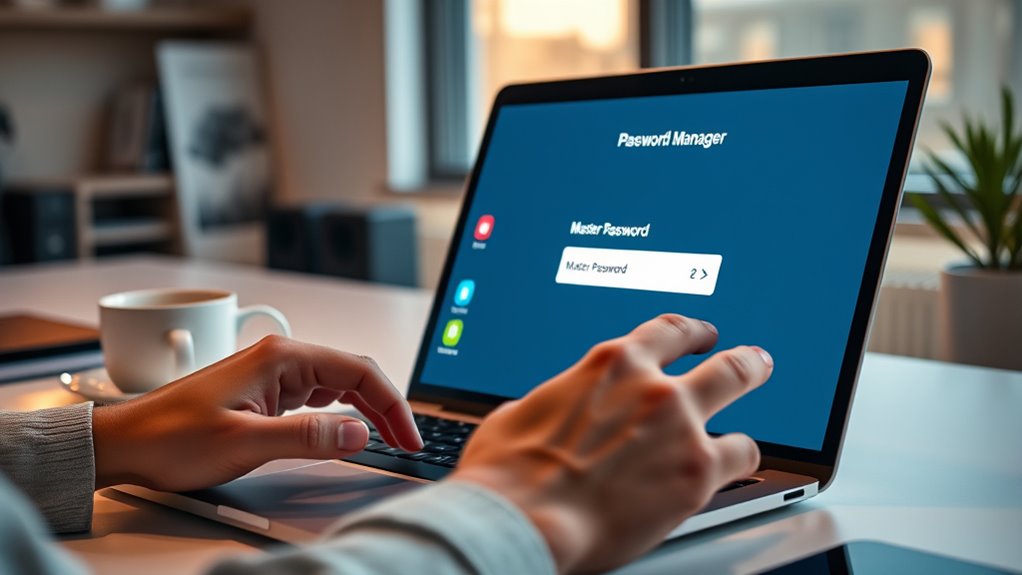
Have you ever struggled to remember multiple passwords? That’s where password managers come in. They’re tools designed to securely store all your login credentials in one encrypted vault, helping you maintain strong password security. This simplifies your digital life by reducing the need to remember countless passwords and prevents you from resorting to weak or reused ones. Additionally, many password managers include automatic password generation features that create complex, unique passwords for each account, further enhancing your security. These generated passwords are often cryptographically secure, making them difficult for hackers to crack. Using a password manager can also help you comply with security best practices, ensuring your online accounts remain protected. It is also important to understand that individual responses to security measures can vary, so choosing a reliable password manager tailored to your needs is crucial. Instead of relying on weak or repeated passwords, a password manager generates and saves unique ones for each account. This not only simplifies your digital life but also enhances your digital privacy by reducing the risk of hacking. With a password manager, you don’t need to remember dozens of passwords—just one strong master password. These tools keep your sensitive information safe, so you can focus on your online activities without worry. In short, password managers are essential for safeguarding your digital presence effortlessly.
How Do Password Managers Work?
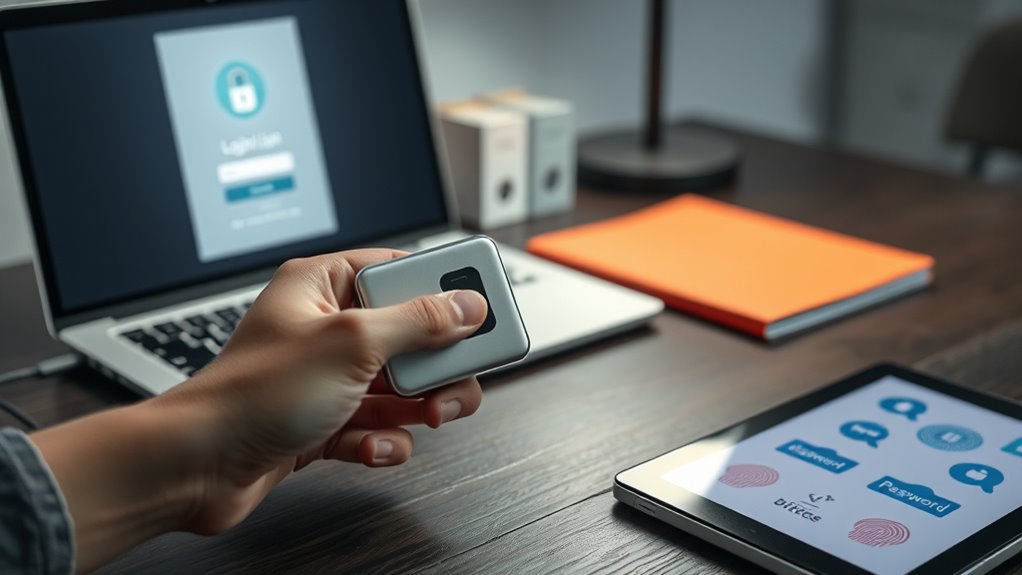
When you sign in with your master password, the manager securely encrypts your data so only you can access it. It then automatically fills in your login details across websites, saving you time and effort. This seamless process keeps your information safe while making managing passwords easier. Additionally, many password managers support multi-device synchronization, ensuring your passwords are accessible and secure across all your devices. Proper encryption methods help prevent unauthorized access and protect your sensitive information. Incorporating aura-based security awareness can further enhance your overall protection, emphasizing the importance of choosing reputable providers with strong security practices to mitigate potential security vulnerabilities.
Master Password Sign-In
Master password sign-in is the gateway to your password manager’s secure vault. This single, strong master password is vital for maintaining your password security. When you enter it, the password manager authenticates you and grants access to all your stored credentials. Unlike remembering multiple passwords, your master password acts as the key to everything, so choose one that’s unique and difficult to guess. Many managers also include extra security measures, like biometric login or two-factor authentication, to protect your account further. Remember, your master password is the foundation of your digital security; if it’s weak or compromised, your entire vault could be at risk. Keep it private, strong, and memorable to guarantee your passwords stay safe and accessible only to you.
Secure Data Encryption
Secure data encryption is the backbone of how password managers protect your information. When you save passwords, they’re encrypted using strong algorithms, making it nearly impossible for hackers to access your data. This encryption happens locally on your device, guaranteeing your master password and stored data stay private. Biometric authentication adds an extra layer of security, allowing you to access your password vault with fingerprint or facial recognition. When you access your passwords from the cloud, cloud storage security measures keep your data safe during transmission and storage. Rest assured, even if someone intercepts your encrypted data, they won’t be able to read it without your master password. This combination of encryption, biometric access, and secure cloud storage guarantees your passwords remain protected at all times.
Auto-Fill Functionality
Auto-fill functionality is a key feature that makes password managers convenient and user-friendly. When you visit a login page, the browser autofill feature detects stored credentials and automatically fills in your username and password, saving you time. This seamless form automation reduces manual input and minimizes errors. Password managers securely store your login details and use encryption to protect your data. When needed, they communicate with your browser to trigger autofill, ensuring your information is entered quickly and accurately. This process not only enhances your browsing experience but also encourages the use of strong, unique passwords without the hassle of remembering them all. Additionally, security protocols are implemented to safeguard your credentials during the autofill process. To further improve security, many password managers employ multi-factor authentication to verify your identity before autofilling sensitive information. Moreover, automatic updates help ensure that your password manager remains protected against emerging threats, maintaining your security over time. Incorporating regular audits of stored credentials can help identify and eliminate weak or compromised passwords, further enhancing your security. Implementing secure storage techniques further ensures your data remains confidential and unaccessible to unauthorized parties. Overall, auto-fill simplifies login procedures while maintaining your security and privacy.
Benefits of Using a Password Manager
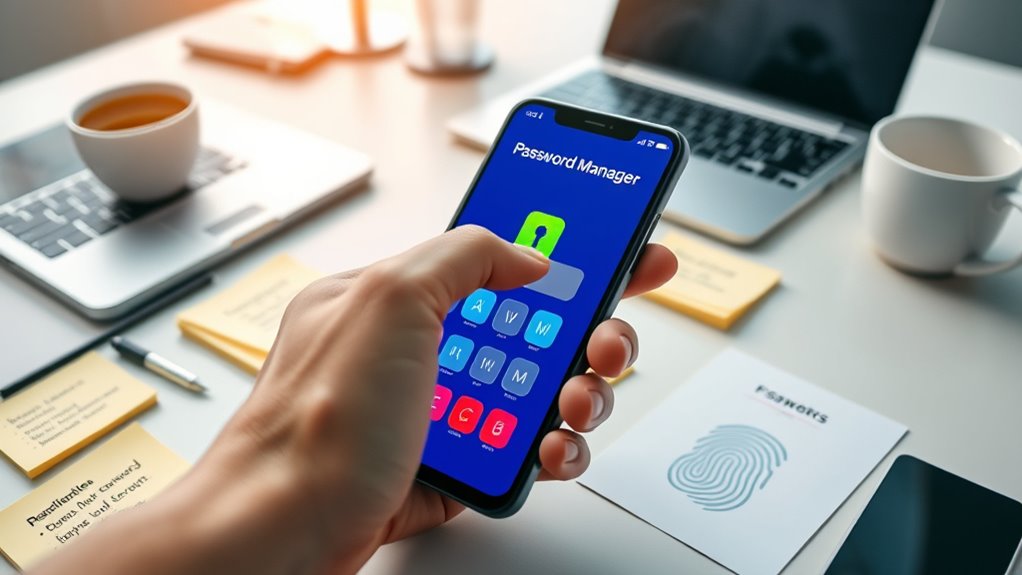
Using a password manager offers numerous benefits that can substantially improve your online security and convenience. It simplifies password management by securely storing all your login details in one place, reducing the risk of weak or reused passwords. With a password manager, you don’t have to remember complex passwords, making it easier to maintain strong, unique credentials for each account. This enhances your digital security by preventing common hacking tactics like password guessing or reuse. Additionally, it saves time during login processes through auto-fill features, streamlining your online experience. Overall, a password manager helps you stay organized, reduces the stress of managing multiple passwords, and boosts your confidence in your online safety. It’s an essential tool for modern digital security. Incorporating sound vibrations and other holistic techniques can further support your overall cybersecurity awareness. Recognizing the importance of dog breeds and their unique traits can also inspire personal security practices rooted in understanding and adaptability.
Key Features to Look for in a Password Manager
To choose the right password manager, it’s important to contemplate the features that will best support your security and usability needs. Look for an intuitive user interface that makes managing passwords simple and efficient. Cross-platform compatibility ensures you can access your vault on any device, whether desktop or mobile. These features help streamline your experience and keep your passwords secure across all environments. Additionally, incorporating hydrocolloid technology can enhance your understanding of protective barrier functions, akin to how password managers safeguard your information. Evaluating performance metrics such as speed and reliability can further ensure your chosen manager meets your daily demands. Considering essential oil benefits in your selection process can also be beneficial, as they exemplify how targeted features improve effectiveness and user experience. Focusing on ease of use and customization options can also improve your overall experience with the tool, ensuring it adapts to your specific security requirements.
Popular Password Manager Options

Many popular password managers offer both free versions and premium plans with extra features. You can start with free options to get basic security, then upgrade if you need more advanced tools. Let’s explore some of the top choices and what premium features they bring to the table. Be aware of the types of cookies used by these services to ensure your privacy preferences are respected. When choosing a password manager, consider security protocols that protect your data during storage and synchronization. Additionally, reviewing the reliability and research backing of these services can help ensure your data remains secure.
Top Free Choices
If you’re looking for reliable password managers without spending a dime, several popular options stand out for their features and ease of use. These free tools often support essential functions like secure password storage and password sharing, making managing multiple accounts straightforward. Many also incorporate multi factor authentication, adding an extra layer of security to protect your sensitive data. Some top contenders include Bitwarden, LastPass, and Dashlane’s free tier, each offering robust encryption and user-friendly interfaces. While they may have limitations compared to paid versions, they still provide strong security foundations. These free options are ideal if you want to enhance your online safety without financial commitment, giving you peace of mind with minimal effort.
Premium Features Offered
While free password managers provide solid security features, upgrading to a premium plan access a suite of advanced tools designed to streamline and strengthen your online security. With premium options, you gain seamless multi-device sync, ensuring your passwords are accessible across your phone, tablet, and computer without hassle. Additionally, premium plans often include secure password sharing, allowing you to share access with trusted contacts without compromising security. These features save you time and reduce the risk of weak or reused passwords. Some premium services also offer extra security measures like dark web monitoring or encrypted backup options. Overall, investing in a premium plan enhances convenience and provides peace of mind, making it easier to manage your passwords securely across all your devices.
How to Set Up Your First Password Manager

Setting up your first password manager is a straightforward process that can greatly enhance your online security. First, choose a reputable password manager that fits your needs. Next, create a strong master password, which is key for password sharing and multi-device synchronization. Then, install the app on your devices and log in using your master password. Afterward, start adding your passwords, ensuring each is unique and secure. Many managers offer options to automatically import saved passwords from browsers or other apps, saving time. Enable multi device synchronization to access your passwords seamlessly across all your devices. This setup helps you manage your passwords effortlessly while keeping them protected and accessible whenever needed.
Tips for Creating Strong, Unique Passwords

To keep your accounts secure, use complex combinations of letters, numbers, and symbols. Avoid common phrases that are easy to guess, and instead, create unique passwords for each site. Incorporating symbols and numbers makes your passwords harder for hackers to crack.
Use Complex Combinations
Creating a strong, unique password starts with using complex combinations of characters. This makes it harder for hackers to crack your passwords, especially when you enable multi device syncing. To enhance security, consider these tips:
- Mix uppercase and lowercase letters to add variability.
- Incorporate numbers and symbols to increase complexity.
- Avoid predictable patterns or common substitutions.
- Use different passwords for each account to prevent password sharing risks.
Avoid Common Phrases
Have you ever used a common phrase as your password? If so, you’re risking security even if you enable multi factor authentication. Common phrases are predictable, making them easy for hackers to guess, especially with password sharing practices. Instead, create a unique combination that isn’t tied to familiar sayings or personal details. Avoid using the same passwords across multiple accounts, which can compromise all your data if one gets breached. Strong, distinct passwords reduce the chance of unauthorized access, even if someone tries to bypass multi factor authentication. Remember, simple, common phrases don’t add enough complexity to protect your sensitive information. Use a password generator or a password manager to craft and store these unique passwords securely, ensuring your accounts stay safe from common attack methods.
Incorporate Symbols and Numbers
Adding symbols and numbers to your passwords greatly boosts their strength by making them harder for hackers to crack. Incorporate these tips to create stronger, more secure passwords:
- Mix symbols and numbers unpredictably within your password, avoiding common patterns.
- Use a combination of uppercase and lowercase letters alongside symbols and digits.
- Avoid sharing passwords, even with trusted contacts, and enable multi-factor authentication for added security.
- Create unique passwords for different accounts to prevent a breach in one from compromising others.
Ensuring Your Password Manager Is Secure

To keep your password manager secure, you need to take proactive steps to protect it from potential threats. Enable biometric authentication, such as fingerprint or facial recognition, to add an extra layer of security. This makes it harder for unauthorized users to access your vault even if your device is lost or stolen. Additionally, implement multi-factor security by requiring a second verification step, like a one-time code sent to your device. Never rely solely on a master password; combining biometric authentication and multi-factor security markedly reduces the risk of breaches. Keep your device’s software updated and avoid sharing access credentials. Regularly review security settings and stay informed about any vulnerabilities. These measures help ensure your password manager remains a secure, reliable tool for managing your passwords.
Common Mistakes to Avoid When Using Password Managers
While password managers are powerful tools for safeguarding your online accounts, many users make mistakes that can compromise their security. To avoid pitfalls, steer clear of these common errors:
- Sharing your master password or writing down hints that reveal it, which can give others easy access.
- Using weak or easily guessable master passwords, undermining the entire system’s security.
- Relying solely on your password manager without enabling two-factor authentication.
- Storing passwords insecurely or sharing them through unencrypted channels, defeating the purpose of a password manager.
Integrating Password Managers Into Your Daily Routine
Integrating a password manager into your daily routine can considerably enhance your online security and convenience. By making it part of your daily digital security awareness, you develop stronger password habits without extra effort. Use your password manager to automatically generate and save unique passwords for each account, reducing the temptation to reuse or simplify passwords. Make it a habit to update your passwords regularly and rely on your manager to remind you of these updates. Incorporate it into your login process—save passwords immediately after creating or changing them. Over time, this seamless integration helps you maintain better security habits while saving time. Consistent use turns a simple tool into a crucial part of protecting your online presence effortlessly.
Frequently Asked Questions
Can I Use Multiple Password Managers Simultaneously?
Yes, you can use multiple password managers simultaneously, but it’s not always practical. To do this effectively, focus on password synchronization and cross-platform compatibility. Make sure each manager can securely sync your passwords across devices. Keep in mind that juggling multiple managers may increase complexity and risk, so it’s often better to choose one with strong features and cross-platform support. This way, you maintain security while minimizing effort.
How Often Should I Update My Stored Passwords?
Updating your passwords is like changing the locks on your doors regularly. You should refresh them every three to six months, depending on your security needs. Stick to a consistent security refresh schedule, especially for sensitive accounts like banking or email. Regular updates reduce the risk of breaches, keeping your online presence safe. Make it a habit, and you’ll stay one step ahead of potential threats.
Are Free Password Managers as Secure as Paid Ones?
Free password managers can be secure, but you need to watch for security vulnerabilities and how they handle user privacy. While many free options use strong encryption, some might lack advanced features or have vulnerabilities that paid versions typically address. Always research their privacy policies, update regularly, and choose reputable providers. Ultimately, paid managers often offer better security and privacy protections, but a trustworthy free one can still keep your passwords safe if you stay cautious.
What Happens if I Forget My Master Password?
If you forget your master password, you won’t be able to access your stored credentials. Most password managers offer master password recovery options, often involving security questions or backup recovery keys. You should set up these options beforehand to prevent permanent lockout. If recovery isn’t possible, you may need to reset your account, losing saved passwords, so choose your security questions carefully and keep your backup info secure.
Do Password Managers Work on All Devices and Browsers?
Oh, sure, your password manager works on all devices and browsers—if you believe in fairy tales. In reality, most password managers offer cross-platform compatibility and browser integration, making it easy to access your passwords everywhere. However, some features might be limited on certain operating systems or browsers. Always double-check compatibility before committing, so you’re not left stranded without your secret stash of passwords when you need it most.
Conclusion
Think of your password manager as a trusty vault keeper, guarding your treasures with a single master key. With it, you can navigate a sprawling city of accounts effortlessly, knowing each door is secure. By trusting this digital guardian, you free yourself from the chaos of remembering countless passwords. Embrace it as your personal security ally, and enjoy peace of mind, knowing your digital life is protected, simple, and always within reach.