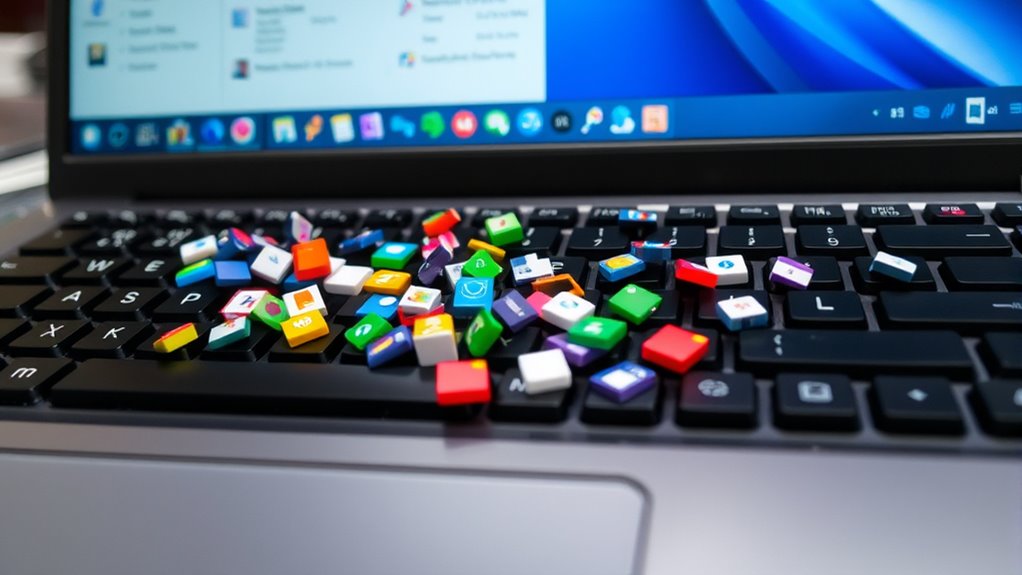

To organize your desktop icons effectively and reduce keyboard clutter, start by grouping related shortcuts into folders for better visual clarity. Keep your most-used apps easily accessible by pinning them to the taskbar or dock. Minimize the number of icons on your desktop to avoid visual overload and use custom shortcuts for quick access. Regularly review and update your setup to maintain a tidy workspace. Keep exploring to discover even more tips that can boost your productivity.
Key Takeaways
- Use folders to group related icons and reduce visual clutter on the desktop.
- Customize shortcuts for frequently used files and programs for quicker access.
- Drag icons into logical clusters based on their purpose to enhance organization.
- Minimize desktop icons by pinning essential apps to taskbar or dock.
- Regularly review and update icon placement to maintain a tidy, efficient workspace.

Have you ever felt overwhelmed by the jumble of cables, gadgets, and accessories cluttering your keyboard area? It’s a common frustration, especially when your desktop looks more like a chaos zone than an organized workspace. One effective way to tackle this is by mastering icon grouping and shortcut management on your computer screen. These strategies help you declutter your desktop visually, making it easier to find what you need and work efficiently.
Icon grouping is all about organizing related shortcuts and files into clusters. Instead of scattering icons across your desktop, you create logical groups based on purpose or frequency of use. For instance, you might have a folder for work-related apps, another for entertainment, and a separate one for personal files. Some operating systems allow you to create folders directly on the desktop, so you can drag and drop icons into these folders. This not only reduces visual clutter but also streamlines your workflow by keeping similar tools together. When you need a specific app or document, you know exactly where to find it, saving you time and mental energy.
Organize your desktop by grouping related icons into folders for easier access and a tidier workspace.
Shortcut management plays a vital role in maintaining a tidy digital workspace. Instead of cluttering your desktop with multiple icons, you can create custom shortcuts to frequently used programs and files. These shortcuts can be placed in a dedicated folder or pinned to your taskbar or dock for quick access. By doing this, you minimize the number of icons visible on your desktop, which directly reduces clutter. Additionally, many systems support keyboard shortcuts that trigger specific applications or actions, further reducing reliance on visual icons. This approach allows you to execute commands swiftly without searching through a cluttered desktop or navigating through menus.
Both icon grouping and shortcut management contribute to a cleaner, more organized desktop environment. They help you avoid the distraction of a cluttered screen, so your focus stays on the task at hand. As you implement these techniques, you’ll notice how much easier it becomes to locate important files and launch applications without sifting through dozens of icons. This organization also extends to your workflow, as it encourages you to adopt a more systematic approach to managing your digital tools.
In the end, organizing your desktop isn’t just about aesthetics; it’s about creating a workspace that promotes productivity and reduces stress. By grouping icons logically and managing shortcuts effectively, you can transform chaos into order. Your keyboard area will feel less cluttered, and your overall work experience will become smoother and more enjoyable. Taking these small steps toward organization can make a big difference in how you interact with your digital environment every day.
Additionally, implementing local automation can help streamline repetitive tasks, further reducing digital clutter and making your workflow more efficient.

Logitech G413 SE Full-Size Mechanical Gaming Keyboard - Backlit Keyboard with Tactile Mechanical Switches, Anti-Ghosting, Compatible with Windows, macOS - Black Aluminum
Take your gaming skills to the next level: The Logitech G413 SE is a full-size keyboard with gaming-first...
As an affiliate, we earn on qualifying purchases.
Frequently Asked Questions
How Can I Quickly Find Hidden Desktop Icons?
To quickly find hidden desktop icons, press the Windows key + D to toggle icon visibility and instantly access your icons. Alternatively, right-click on the desktop, select “View,” and then choose “Show desktop icons.” This method gives you quick access to hidden icons, helping you organize and locate your files efficiently. Regularly adjusting icon visibility settings guarantees you maintain an organized workspace for easier navigation.
What Are the Best Tools for Desktop Icon Management?
You don’t need complicated tools—try built-in options like icon grouping and color coding to manage your desktop easily. These features help you categorize icons by project or priority, making them quicker to locate. Some popular apps, like Fences or Stardock, enhance these functions with customizable grouping and color coding, so your desktop stays organized without extra hassle. This way, you gain clarity and efficiency effortlessly.
How Do I Customize Icon Sizes and Spacing?
You can customize icon sizes and spacing by right-clicking on your desktop and selecting “View.” From there, choose “Icon size” to adjust the icon size directly. To fine-tune icon spacing, enable icon grid customization by holding the “Ctrl” key and scrolling with your mouse or adjusting grid spacing options in display settings. These steps help you achieve ideal icon spacing adjustment for a cleaner, more organized desktop.
Can I Automatically Organize Icons by Type or Date?
Imagine you’re in a sci-fi movie, but instead of gadgets, you can automatically organize your icons by type or date. Yes, you can! Use your desktop’s built-in features like “Sort by” options to enable automatic sorting. Plus, icon grouping helps you keep similar files together. Just right-click on your desktop, choose “Sort by,” and pick your preferred method—saving you time and keeping your workspace tidy effortlessly.
How Do I Recover Accidentally Deleted Desktop Icons?
If you accidentally delete desktop icons, don’t worry—icon recovery is possible. First, check your Recycle Bin and restore the icons from there. If they’re not there, use a desktop restore feature or recovery software to retrieve them. You can also undo recent changes if your system allows it. These steps help quickly recover your icons, keeping your desktop organized and clutter-free.

Logitech Z207 2.0 Stereo Computer Speakers with Bluetooth
Versatile setup with speakers that connect easily to computers and other devices via Bluetooth wireless or 3.5mm cable
As an affiliate, we earn on qualifying purchases.
Conclusion
By tidying up your desktop, you create a smoother, more enjoyable workspace. A little organization can gently clear the visual noise, allowing your focus to flow effortlessly. With everything in its place, you’ll find your tasks become less cluttered and more approachable. Embrace these small changes, and watch your digital environment transform into a calm, inviting space. Sometimes, a gentle touch on your icons makes all the difference, bringing harmony to your daily routine.
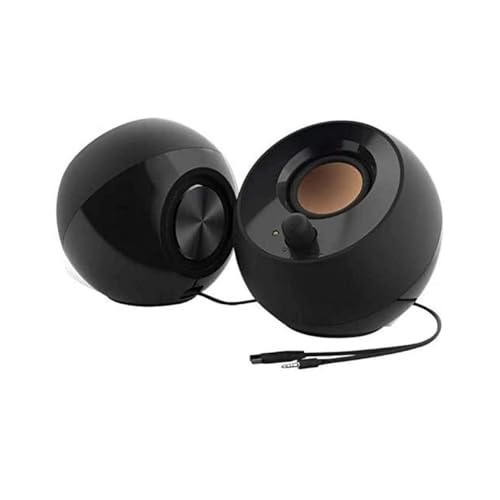
Creative Pebble 2.0 USB-Powered Desktop Speakers with Far-Field Drivers and Passive Radiators for Pcs and Laptops (Black)
Single USB cable for computers and laptops | enjoy a hassle-free Audio experience with a single USB cable...
As an affiliate, we earn on qualifying purchases.

Computer Speakers for Desktop PC Monitor, USB Plug-in, Wired, Computer Soundbar for PC, Laptop Speakers with Adaptive-Channel-Switching, Loud Sound, Deep Bass, USB C Adapter, Easy to Clip on Monitor
[COMPATIBLE WITH USB DEVICES] - Our USB Speakers are compatible with Windows, macOS, ChromeOS, and Linux, making them...
As an affiliate, we earn on qualifying purchases.