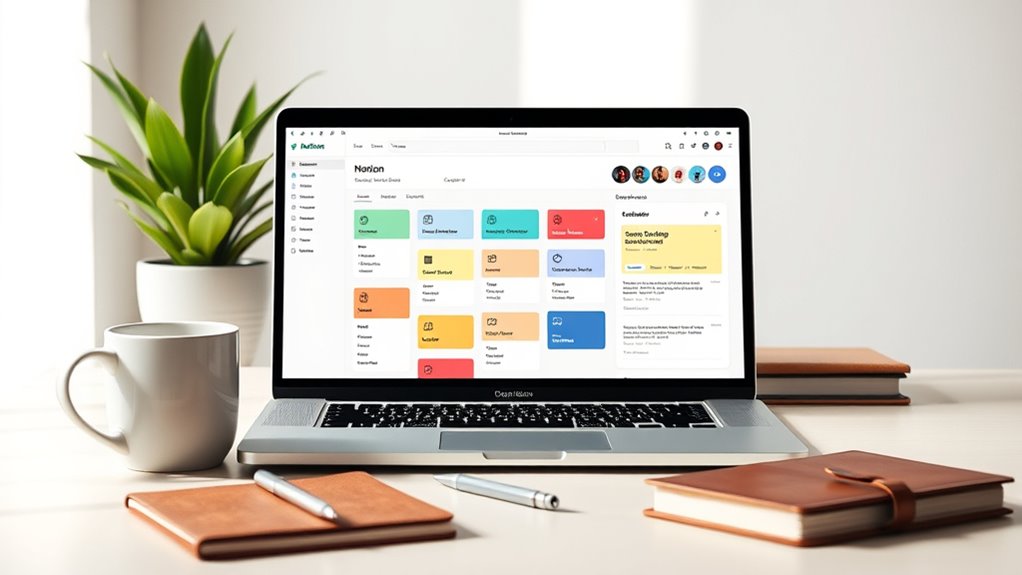

To create a cleaner, more organized workflow in Notion, start by using custom templates for different tasks to save time and guarantee consistency. Utilize icons, color coding, and headers to visually differentiate projects, making navigation easier. Embed links, files, and notes directly into pages for centralized access. Keep your workspace clutter-free by maintaining a standardized structure across projects. Explore these tips further to optimize your setup and boost productivity effortlessly.
Key Takeaways
- Use custom templates to standardize workflows, ensuring consistency and reducing setup time across projects.
- Embed links, files, and notes directly into templates for centralized access and streamlined navigation.
- Color-code and iconize templates to visually organize your workspace and quickly identify task types.
- Maintain a library of reusable templates for different tasks, simplifying onboarding and boosting efficiency.
- Regularly update and tweak templates to adapt to evolving work habits, keeping your system clean and relevant.

Getting organized with Notion can transform how you manage your tasks and projects. With its versatile workspace, you can streamline task management and stay on top of everything without feeling overwhelmed. One of the most effective ways to do this is by creating custom templates tailored to your specific needs. Instead of setting up new pages from scratch every time, custom templates let you duplicate a pre-designed layout, saving you time and ensuring consistency across your workflow. Whether you’re managing daily to-dos, project milestones, or recurring meetings, these templates help you keep everything structured and accessible.
Additionally, leveraging home decor inspiration and interior design tips can help you create a workspace that feels comfortable and motivating, boosting your productivity. Start by identifying common tasks or projects that you handle regularly. For example, if you often plan content calendars, set up a template that includes sections for deadlines, ideas, drafts, and publication status. For task management, create templates that include checklists, priority tags, and due dates. Once you design a template that fits your needs, you can duplicate it whenever you start a new project or task. This approach keeps your workspace organized, reduces clutter, and guarantees that no important detail gets overlooked. Plus, it makes onboarding new team members easier since they can use standardized templates right away.
Custom templates also help you maintain a consistent workflow, which is key to staying productive. When all your projects follow a similar structure, you spend less time figuring out what to do next and more time actually completing tasks. You can even embed links, files, or notes directly into your templates, creating a one-stop hub for all relevant information. This centralized system minimizes distractions and helps you focus on what matters most.
Another advantage is that you can personalize your templates to match your style and preferences. Use icons, color coding, or headers to differentiate between different types of tasks or projects. Notion’s flexibility means you can tweak these templates as your needs evolve, making sure your system stays aligned with your work habits. Over time, you’ll develop a library of templates that make task management smoother and more intuitive.

Logitech G413 SE Full-Size Mechanical Gaming Keyboard - Backlit Keyboard with Tactile Mechanical Switches, Anti-Ghosting, Compatible with Windows, macOS - Black Aluminum
Take your gaming skills to the next level: The Logitech G413 SE is a full-size keyboard with gaming-first...
As an affiliate, we earn on qualifying purchases.
Frequently Asked Questions
How Can I Automate Repetitive Tasks in Notion?
You can automate repetitive tasks in Notion by using built-in features like templates, database relations, and formulas to streamline your workflow. Set up task automation by creating templates for recurring projects, which saves time and guarantees consistency. Use database filters and linked databases to optimize your workflow, reducing manual input. Integrate third-party tools like Zapier or Automate.io for advanced automation, making your processes more efficient and freeing you to focus on higher-priority tasks.
What Are the Best Templates for Project Management?
You should try project management templates that emphasize task tracking and allow for easy template customization. Look for templates like Kanban boards, Gantt charts, or task lists that let you monitor progress visually. These templates are flexible, so you can adapt them to your workflow, add custom fields, or automate updates. This way, you stay organized, manage deadlines efficiently, and streamline your entire project process seamlessly.
How Do I Integrate Notion With Other Apps?
Integrating Notion with other apps is like connecting the dots of a starry sky. You can easily set up app integrations and workflow automation using tools like Zapier, Automate.io, or native Notion APIs. These let you sync data, automate tasks, and streamline your workflow. Just choose your apps, create simple workflows, and watch your productivity soar as your tools work seamlessly together.
Can I Customize Notion’s Appearance for Better Clarity?
Yes, you can customize Notion’s appearance for better clarity. You can create custom color schemes by adjusting background and text colors to highlight important sections. Additionally, font customization options let you choose different fonts or sizes, making content easier to read. These tweaks help you personalize your workspace, reduce visual clutter, and enhance focus, ultimately creating a cleaner, more organized workflow tailored to your preferences.
How Do I Recover Accidentally Deleted Pages?
If you accidentally delete a page in Notion, don’t worry—there’s a way to recover it. Go to your sidebar and click on “Trash,” where deleted pages are stored temporarily. Find the page you want to recover, then right-click and select “Restore.” This process guarantees effective page recovery from accidental deletions, helping you maintain a clean, organized workflow without losing important information.

Kensington Orbit Trackball Mouse with Scroll Ring (K72337US), 4 1/2X5 1/2X2"
Optical tracking technology provides precise cursor movement for superior accuracy so you can get where you want on...
As an affiliate, we earn on qualifying purchases.
Conclusion
With these Notion tricks, your workspace transforms into a well-tuned orchestra, each note perfectly in place. Imagine your tasks flowing seamlessly like a gentle river, guiding you effortlessly through your day. As you master these tips, your workflow becomes a polished masterpiece—clear, organized, and vibrant. Embrace these tools, and watch your productivity bloom like a garden in full springtime. Your organized oasis is just a few clicks away—start shaping it today.

ProtoArc Wireless Bluetooth Trackball Mouse, EM02 Two Adjustable Angle Ergonomic Rechargeable Computer Ball Mouse, 3 Device Connection, Thumb Control and Smooth Tracking for Laptop, PC, Mac-Gray
Adjustable Tilt Angle: With its customizable hinge, you can easily set the trackball to a flat 0° or...
As an affiliate, we earn on qualifying purchases.
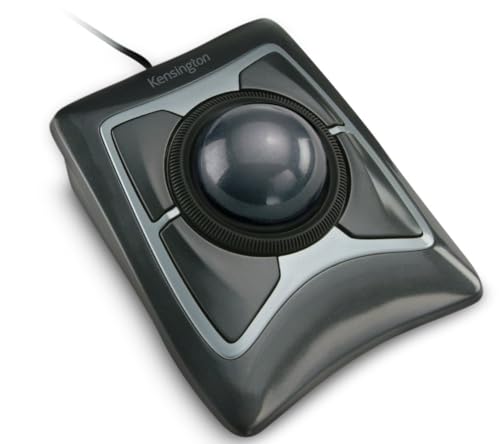
Kensington Expert Trackball Mouse (K64325), Black Silver, 5"W x 5-3/4"D x 2-1/2"H
Large 55mm ball design and Diamond Eye optical tracking for precise cursor control; Patented scroll ring lets you...
As an affiliate, we earn on qualifying purchases.