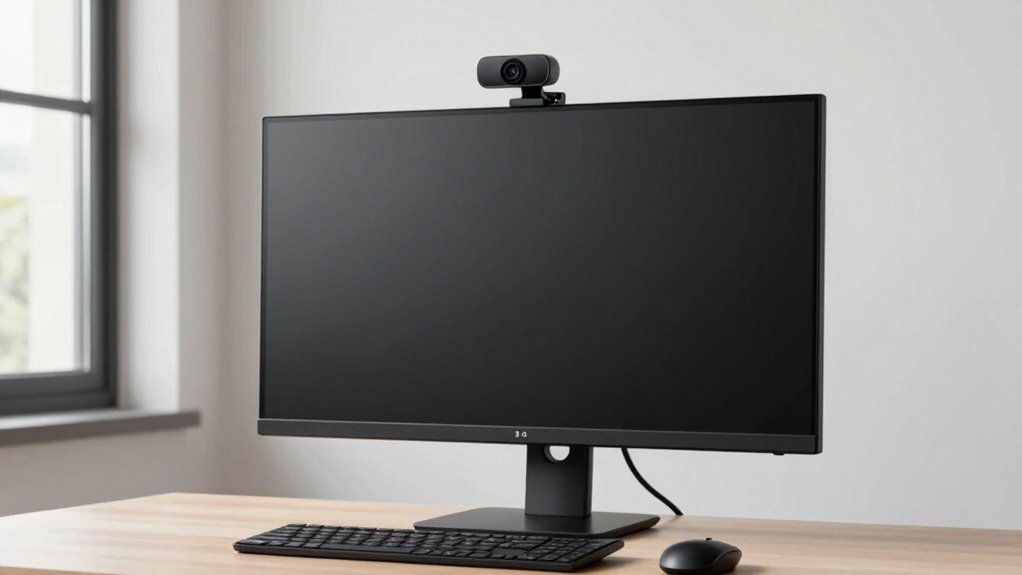

To position your webcam without messing up your monitor’s ergonomics, place it at eye level using a stand or stacking things like books. Make sure it captures your face directly with a slight downward tilt for a natural look. Keep your monitor at a comfortable distance and align it with your camera to prevent neck strain. Good lighting also matters to improve image quality. Stick around to learn more tips for an ideal, comfortable setup.

Get your wardrobe favorites delivered free — and shop member deals
- Fast, free delivery on millions of items
- Access to Prime Big Deal Days deals on October 6–7
- Prime Video, Amazon Music and more included
Key Takeaways
- Position the webcam at eye level, ensuring it doesn’t block or tilt the monitor awkwardly.
- Use adjustable stands or stack books to elevate the webcam without shifting monitor placement.
- Align the camera directly in front of you, maintaining a natural angle without compromising monitor ergonomics.
- Keep the monitor at a comfortable eye level and distance to support proper camera placement.
- Adjust monitor tilt or height to complement the webcam position, avoiding strain and maintaining good posture.
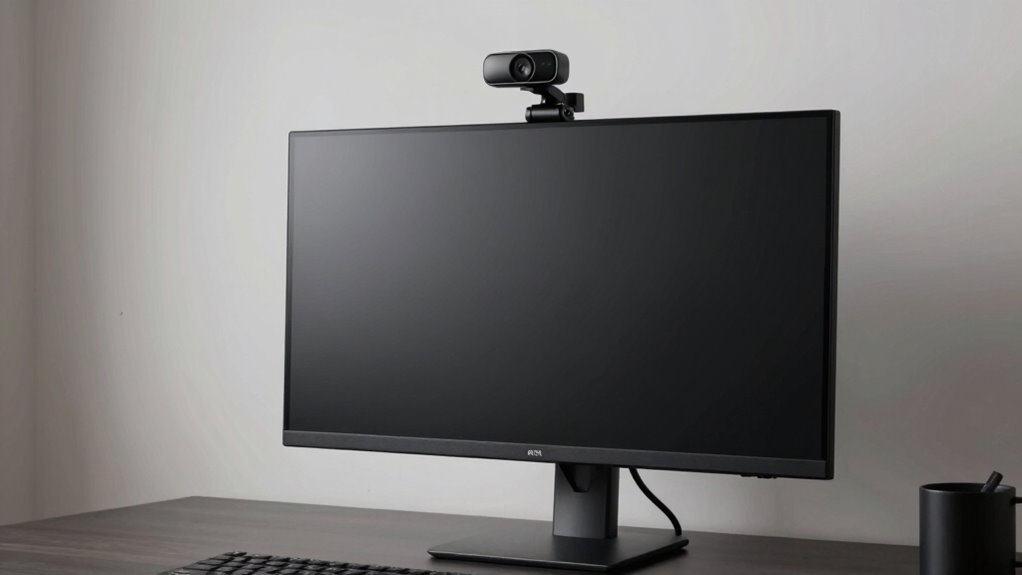
Positioning a webcam correctly is vital for comfortable and professional video calls, but it can be tricky to do without compromising your monitor’s ergonomic setup. To strike the right balance, you need to take into account both the camera angle and the lighting setup. The goal is to place the webcam at eye level so you don’t strain your neck or slouch forward, which can lead to discomfort over time. Using a stable platform, like a small adjustable stand or stacking some books, helps elevate the webcam to the proper height without cluttering your desk or forcing awkward postures. Make sure the camera angle captures your face directly, with a slight tilt downward if necessary, so you look natural and engaged. This prevents your viewers from seeing up your nostrils or viewing your background at odd angles, which can seem unprofessional. Additionally, adjusting your camera positioning allows you to maintain a comfortable viewing angle that aligns with ergonomic principles. Ensuring your camera is stable and at the correct height minimizes camera shake and keeps your appearance clear and professional. Proper lighting setup plays a fundamental role in how you appear on camera. Poor lighting can make your image grainy or cast unflattering shadows, distracting viewers from what you’re saying. Aim for a well-lit space with soft, diffuse light that illuminates your face evenly. Position a light source in front of you, but avoid harsh direct sunlight or bright overhead lights that cause shadows under your eyes or nose. If natural light is available, set up near a window, but be mindful of changing sunlight throughout the day. You might also consider using a ring light or a small desk lamp with a diffuser to achieve balanced lighting. Proper lighting not only improves image quality but also reduces eye strain for you, keeping your face clearly visible without having to squint or lean in. Incorporating ergonomic principles into your setup can help prevent discomfort during long video calls. Small adjustments in monitor positioning can significantly impact your overall comfort and the quality of your video calls. With these simple adjustments, you can enjoy high-quality video calls without sacrificing your ergonomic health.
As an affiliate, we earn on qualifying purchases.
Frequently Asked Questions
Can I Use a Portable or Wireless Webcam Effectively?
Yes, you can use a portable or wireless webcam effectively. A wireless webcam offers seamless wireless connectivity, reducing clutter and allowing flexible placement. Its portable design means you can easily move it around to find the best angle without compromising your setup. Just make sure your Wi-Fi is stable for clear video quality, and position the webcam at eye level for ideal ergonomics and effective communication during calls or recordings.
What Are the Best Lighting Conditions for Webcam Placement?
Think of your webcam’s lighting as the spotlight on your stage—good lighting makes you shine. For the best results, set up a balanced lighting setup with soft, diffuse light sources. Aim for ambient brightness that’s neither too harsh nor too dim, ideally matching your environment’s overall lighting. Natural light works well, but if you use artificial, opt for evenly distributed light to avoid shadows and glare on your face.
How Do I Prevent Webcam Overheating During Long Use?
To prevent webcam overheating during long use, focus on webcam cooling and overheating prevention. Make sure your webcam has proper ventilation by avoiding enclosed spaces and keeping it away from direct heat sources. Use a cooling pad or small fan if necessary, and regularly clean dust from vents. Also, reduce continuous recording time, and avoid high ambient temperatures to keep your webcam cool and functioning smoothly.
Are There Ergonomic Guidelines for Multiple Monitor Setups?
You should follow ergonomic guidelines for multiple monitor setups by aligning screens at eye level and maintaining a slight tilt to reduce neck strain. Coincidentally, your chair ergonomics play a key role—adjust your chair height so your feet rest flat, and your back remains supported. Proper monitor positioning guarantees seamless workflow, prevents discomfort, and promotes good posture, helping you stay comfortable during long work sessions.
How Can I Reduce Webcam Glare or Reflections?
To reduce webcam glare or reflections, focus on proper camera positioning. Place your webcam at eye level and slightly angle it to avoid direct reflections from lights or windows. Use glare reduction techniques like adjusting your monitor’s brightness, adding a matte screen filter, or repositioning light sources. These steps help minimize unwanted reflections, ensuring clearer video quality while maintaining ergonomic comfort in your workspace.
desk book holder for webcam elevation
As an affiliate, we earn on qualifying purchases.
As an affiliate, we earn on qualifying purchases.
Conclusion
Remember, your webcam is a window not just to others but to your world. Placed thoughtfully, it becomes a bridge that keeps you connected without distorting your view or your comfort. Think of it as a delicate thread, weaving your presence into the digital fabric without pulling at your natural posture. When balanced just right, your workspace reflects harmony—an anchor for your focus, a gateway to connection, and a symbol of respect for your well-being.
ring light for video conferencing
As an affiliate, we earn on qualifying purchases.
As an affiliate, we earn on qualifying purchases.
As an affiliate, we earn on qualifying purchases.
Fall Picks
fall essentials
As an affiliate, we earn on qualifying purchases.