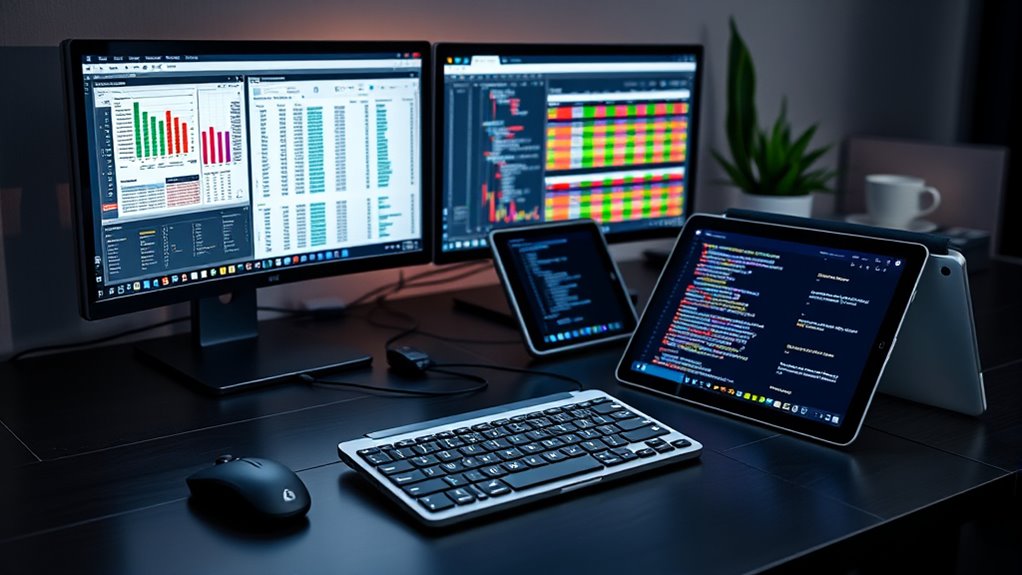
Managing your work and personal PCs on one desk boosts productivity and keeps your workspace tidy. By using multi-device management tools like KVM switches or remote management software, you can switch effortlessly between machines and reduce clutter. Ensuring hardware compatibility and keeping drivers updated helps prevent connection issues. Good hardware choices make your setup reliable and future-proof. To discover more tips on optimizing your multi-device workspace, keep exploring how you can create an efficient and organized environment.
Key Takeaways
- Use multi-device management software to seamlessly switch between work and personal PCs from a single interface.
- Choose compatible hardware like KVM switches supporting your device types and operating systems.
- Verify connection options (HDMI, DisplayPort, USB-C) to ensure hardware supports your workspace setup.
- Keep device drivers and management software updated for optimal performance and stability.
- Plan for future upgrades to maintain a scalable, clutter-free, and efficient multi-machine workspace.
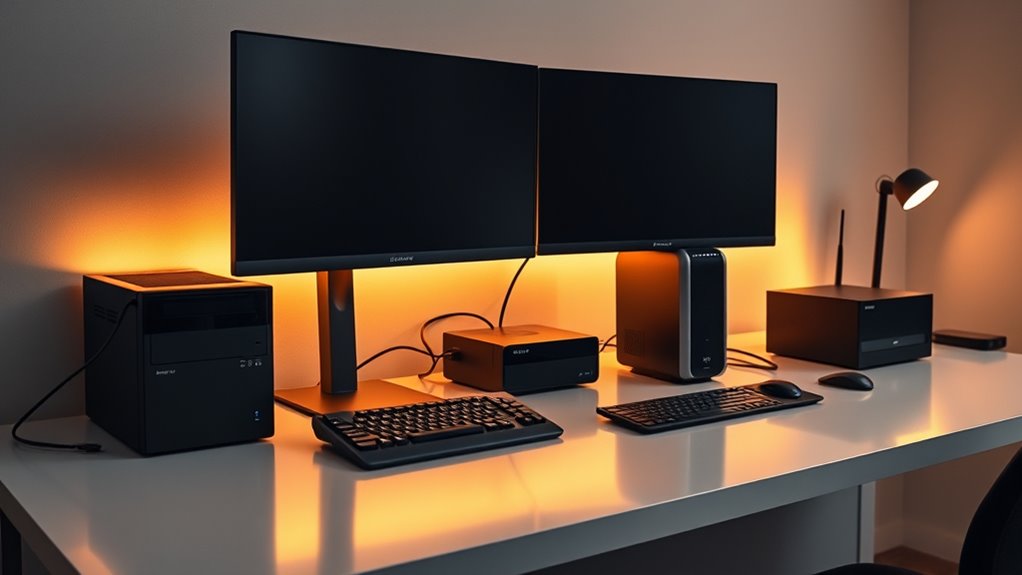
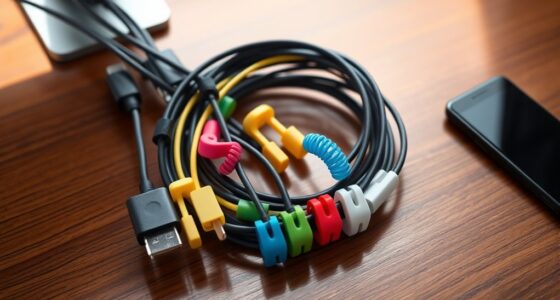
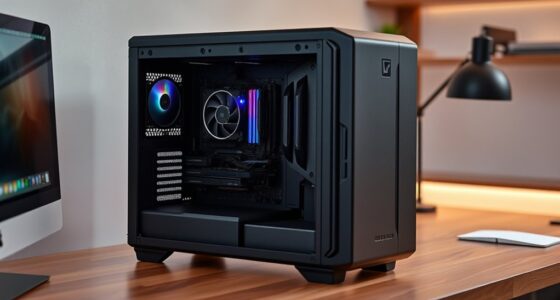
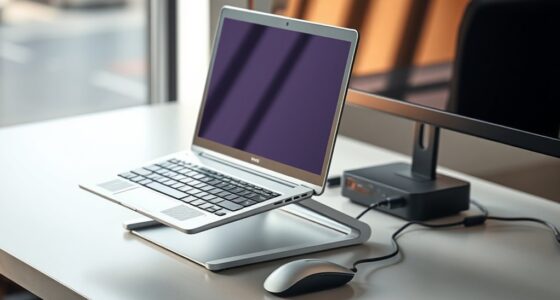
In today’s busy workplaces, managing multiple machines on a single desk has become increasingly common—and vital. You might find yourself juggling a work laptop, a personal PC, and perhaps a tablet or mini PC, all within arm’s reach. To stay productive, you need efficient ways to switch between devices without clutter or confusion. That’s where remote management comes into play. With the right tools and setups, you can control multiple machines from a single keyboard and mouse, making your workflow seamless. Remote management software lets you access your work computer from your personal device or switch between machines effortlessly, saving you time and reducing physical clutter. This setup is especially useful if your devices run different operating systems or require frequent switching, as it minimizes the need to move around or reconnect peripherals constantly. Ensuring your hardware is compatible with multi-device setups is crucial for a smooth experience. Hardware compatibility is a vital factor in creating an integrated multi-machine workspace. Before investing in hardware like KVM switches or shared peripherals, you need to verify they work seamlessly with all your devices. Not all KVM switches support every connection type or operating system, so checking compatibility is essential. For example, if you’re using a mix of HDMI and DisplayPort monitors or USB-C hubs, confirm that your chosen hardware supports these standards. Some devices are designed for specific setups, and choosing incompatible hardware can lead to frustrating connection issues or poor performance. By verifying hardware compatibility upfront, you ensure a smooth experience, reducing downtime and technical headaches.
Managing multiple devices at your desk boosts productivity and reduces clutter with seamless remote control and switching.
Additionally, consider your workspace layout and your devices’ ports. Some hardware solutions require specific port types or adapters, so evaluating your equipment beforehand helps prevent surprises. Think about future upgrades as well—select hardware that’s adaptable and scalable as your tech needs evolve. Investing in universally compatible, high-quality hardware not only simplifies your current setup but also protects your investment long-term.
To optimize your multi-machine workspace, you should also think about software support and driver compatibility. Ensure that your remote management tools are compatible with your operating systems and that your hardware drivers are up to date. Outdated drivers can cause connectivity issues, lag, or even hardware conflicts. Regular updates, paired with hardware that supports modern standards, will keep your setup running smoothly.
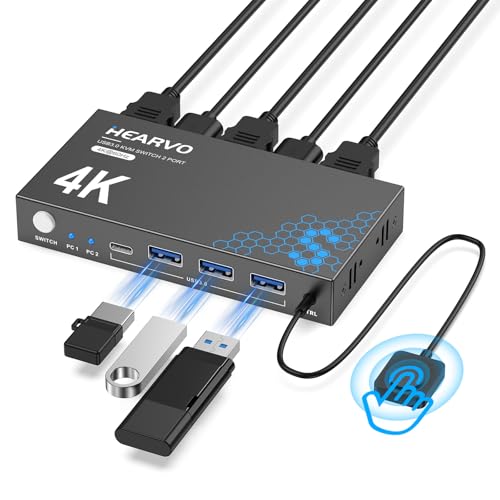
Hearvo USB 3.0 HDMI KVM Switch 1 Monitors 2 Computers, 4K@60Hz KVM Switches for 2 Computers Sharing Monitor Keyboard Mouse Hard Drives Printer, with EDID Adaptive, 2USB Cable and Controller -S7232H
【KVM Switch 1 Monitors 2 Computers】This HDMI KVM Switch with two HDMI ports allows control of two computers,…
As an affiliate, we earn on qualifying purchases.
As an affiliate, we earn on qualifying purchases.
Frequently Asked Questions
How Do I Secure My Data Across Multiple Devices?
You can secure your data across multiple devices by using cloud backup services and data encryption. Regularly back up your files to a trusted cloud provider, ensuring your data is safely stored off-site. Always encrypt sensitive information before transferring or storing it, so even if someone gains access, they can’t read it. These steps help protect your data from theft, loss, or unauthorized access, keeping your information safe across all your devices.
What Are Best Practices for Preventing Cross-Device Malware?
To prevent cross-device malware, you should implement network segmentation, dividing your devices into separate network zones to limit malware spread. Use malware sandboxing to isolate suspicious files or applications before they access your main systems. Keep your software and security tools updated regularly, avoid clicking unknown links, and maintain strong, unique passwords. These practices help keep malware contained and minimize the risk of infection across your devices.
Can I Synchronize Settings Automatically Between Different Machines?
Yes, you can synchronize settings automatically between different machines. Use cloud synchronization tools like OneDrive or Google Drive to keep files up-to-date. For user profile management, consider Windows Sync or macOS iCloud to sync preferences, passwords, and settings across devices. This way, your personalized environment stays consistent, saving you time and effort. Just make certain you enable these features and keep your accounts secure with strong passwords and two-factor authentication.
How Do I Manage Power Consumption Efficiently With Multiple PCS?
Power prudence prevents pointless power waste. You should adopt power saving strategies like enabling sleep mode, reducing display brightness, and scheduling automatic shutdowns. Use energy monitoring tools to track consumption, identify high-energy devices, and adjust settings accordingly. By balancing background processes and optimizing hardware use, you conserve energy efficiently. These proactive approaches guarantee your multiple PCs stay productive without wasting power, making your workspace both wise and eco-friendly.
What Tools Simplify Remote Access to Multiple Computers?
You can simplify remote access to multiple computers by using tools like remote desktop applications that offer cross-platform compatibility. Programs like TeamViewer, AnyDesk, and Chrome Remote Desktop allow you to connect seamlessly across different operating systems. These tools provide secure, user-friendly interfaces, making it easy to control your work and personal PCs from anywhere, saving time and boosting productivity. Just install the app, log in, and start managing your devices remotely.

【Upgrade】 USB C/USB Hub, BERLAT Aluminum 7 in 1 USB C & USB Hub with USB 3.0, USB 2.0 Ports for PC/Laptops/MacBook Pro/Air/iMac/iPad and More Devices
【7 in 1 Multi-functional Hub】 USB C hub with 1 x USB 3.0 port and 4 x USB…
As an affiliate, we earn on qualifying purchases.
As an affiliate, we earn on qualifying purchases.
Conclusion
By streamlining your work and personal computers on a single desk, you create an efficient, clutter-free workspace. Imagine a freelance designer seamlessly switching from their work laptop to a personal desktop, saving time and reducing frustration. This setup boosts productivity and keeps your digital life organized. Whether you’re juggling projects or managing life’s tasks, integrating multiple machines at one desk helps you stay focused and in control—making your workday smoother and more enjoyable.
Epson RapidReceipt RR-400W Wireless Compact Desktop Color 2-Sided Receipt & Document Scanner with ScanSmart AI PRO Receipt Management & PDF Software & 20-Page Auto Document Feeder (Renewed)
ScanSmart AI PRO Technology — Intelligently convert and extract scanned information into smart digital data – making your…
As an affiliate, we earn on qualifying purchases.
As an affiliate, we earn on qualifying purchases.

Unitek KVM Switch 2 Monitors 2 Computers 4K@60Hz HDMI+Displayport Dual Monitor KVM Switches 3 USB Ports for Sharing Keyboard Mouse Hard Drives Mic Headset 2 USB-B Cable DC 5V Adapter Controller
【DP HDMI 2 IN 2 OUT KVM Switch 】The Unitek DP HDMI KVM Switch lets you connect two…
As an affiliate, we earn on qualifying purchases.
As an affiliate, we earn on qualifying purchases.