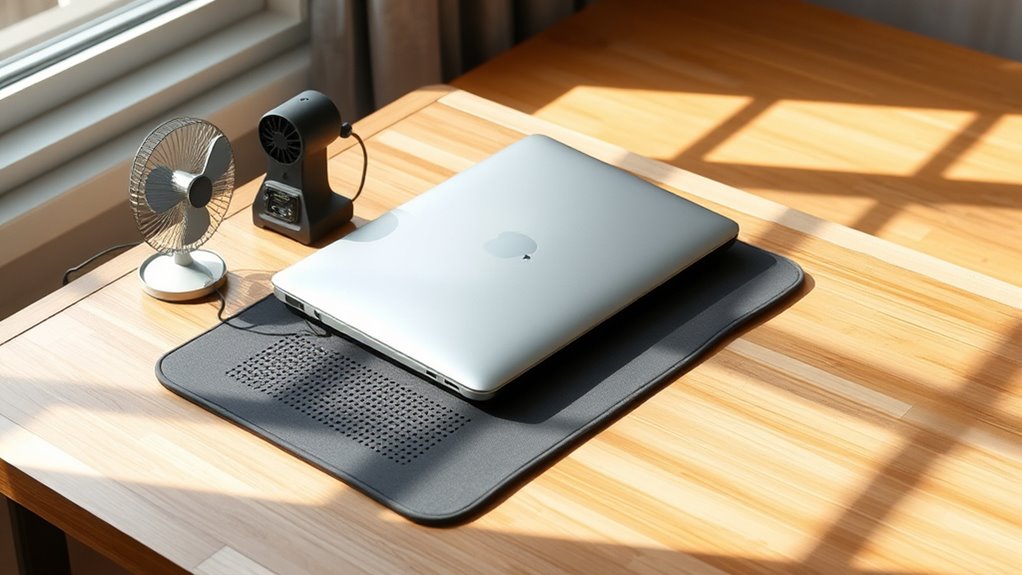

To keep your laptop cool and quiet, guarantee proper airflow by using a cooling pad or elevating it to improve ventilation. Regularly clean vents and fans to prevent dust buildup that hampers cooling. Adjust fan settings via software or BIOS to control noise and temperature. Monitoring system temperatures helps you fine-tune cooling strategies, while keeping internal components maintained ensures ideal performance. If you want to discover more effective tips, there’s plenty more to explore on this topic.
Key Takeaways
- Use a cooling pad to improve airflow and dissipate heat effectively.
- Adjust fan settings via software or BIOS to optimize cooling and reduce noise.
- Regularly clean vents and fans to prevent dust buildup that hampers cooling efficiency.
- Elevate your laptop to enhance airflow and reduce heat accumulation.
- Monitor temperature with software and manage fan speeds accordingly for quiet, safe operation.

Maintaining proper laptop temperature is essential to guarantee ideal performance and extend the device’s lifespan. When your laptop runs too hot, it can slow down, overheat, or even suffer hardware damage. To keep things cool, you should consider using cooling pads and taking control of your fan settings. Cooling pads are simple yet effective tools that provide additional airflow beneath your laptop, helping dissipate heat more efficiently. They often come with built-in fans that boost cooling power and can significantly lower your device’s temperature during intensive tasks like gaming or video editing. By elevating your laptop and enhancing airflow, cooling pads prevent heat buildup in critical components, ensuring smoother operation and reducing the risk of overheating.
Fan control is another vital aspect of maintaining optimal temperature. Many laptops have built-in software or BIOS options that allow you to adjust fan speeds manually or set them to run automatically based on temperature thresholds. When you monitor your system’s temperature, you can increase fan activity before overheating occurs, keeping internal components at safe levels. Using fan control tools, you can fine-tune how your laptop cools itself, especially during demanding activities. For example, if you notice your laptop gets loud and hot when gaming, increasing fan speed can help keep noise levels manageable while improving cooling. Conversely, during lighter tasks, you might lower fan speeds to reduce noise, as long as temperatures stay within safe limits. Regular cleaning of vents and fans also plays a vital role in maintaining proper airflow, preventing dust buildup that can impede cooling efficiency. If your laptop’s internal fans are noisy or not responding well, updating drivers or firmware might help optimize fan control settings further. Additionally, system monitoring software can assist in tracking temperature fluctuations and optimizing cooling strategies more effectively.
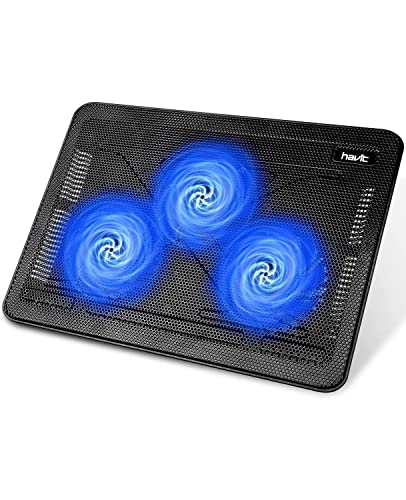
havit HV-F2056 15.6"-17" Laptop Cooler Cooling Pad – Slim Portable USB Powered (3 Fans), Black/Blue
Ultra-Portable: Slim, portable, and light weight allowing you to protect your investment wherever you go
As an affiliate, we earn on qualifying purchases.
As an affiliate, we earn on qualifying purchases.
Frequently Asked Questions
How Can I Prevent My Laptop From Overheating During Long Gaming Sessions?
To prevent your laptop from overheating during long gaming sessions, you should optimize airflow by elevating it and cleaning vents regularly. Reapplying thermal paste can improve heat transfer between the CPU and its cooler, reducing temperatures. Use a cooling pad to enhance airflow further. Monitoring your system’s temperature and adjusting in-game settings also help keep temperatures in check, ensuring smooth performance without overheating issues.
Are There Specific Laptop Brands Known for Better Cooling Systems?
Some brands are better for cooling systems due to their reputation for quality. For instance, ASUS, MSI, and Razer are known for integrating advanced cooling technology and innovative designs, helping prevent overheating during intense gaming sessions. You can trust their brand reputation for durability and performance. When selecting a laptop, look for models with dedicated cooling features, as these will keep your device cooler and quieter during long use.
What Are the Risks of Operating a Laptop at High Temperatures?
Operating your laptop at high temperatures risks thermal damage, which can cause internal components to overheat and degrade over time. You might experience hardware failure, leading to data loss or costly repairs. High heat also reduces your laptop’s lifespan and can cause sudden shutdowns to protect itself. To avoid these issues, keep your device well-ventilated, use cooling pads, and monitor temperature levels regularly.
How Often Should I Clean My Laptop’s Cooling Vents?
Think of your laptop’s cooling vents as the lungs of your device—you need to keep them clear to breathe easily. You should clean your cooling vents every three to six months, or more often if you notice dust buildup or your laptop gets hot. Regular cleaning maintains proper airflow, preventing overheating and ensuring your laptop runs smoothly. A little upkeep goes a long way in keeping it cool and quiet.
Can Using a Laptop Cooling Pad Improve Overall Performance?
Using a laptop cooling pad can definitely improve overall performance. It enhances cooling technology, preventing overheating during intensive tasks. By integrating useful laptop accessories like cooling pads, you help maintain prime temperatures, which reduces thermal throttling and keeps your system running smoothly. A cooling pad is a smart investment, especially if you often use your laptop for gaming, video editing, or other demanding applications.

llano V12 Ultra Laptop Cooling Pad with Smart Software Control, RGB Gaming Laptop Fan Cooler Stand, 5.5" Turbo Fan, Adjustable Speed, 3-Port USB 3.0 Hub, 3 Height Stands, for 15.6"-19" Laptops, Black
Intelligent AI Temperature Control with Myth.cool Software: Safeguard your laptop with our cutting-edge cooling technology! The llano V12…
As an affiliate, we earn on qualifying purchases.
As an affiliate, we earn on qualifying purchases.
Conclusion
Now that you know how to keep your laptop cool and quiet, it’s time to put these tips into action. Regular cleaning, proper ventilation, and monitoring temps help prevent overheating—just like a well-oiled machine. Remember, even in a world where smartphones rule, a cool-running laptop stays swift and silent. So, treat your device like your trusty steed and keep it in tip-top shape. Stay cool, stay productive, and don’t forget—your laptop’s health is worth it!

Keyboard Cleaning Kit Laptop Cleaner, All-in-1 Computer Screen Cleaning Brush Tool, Multi-Function PC Accessories Electronic Cleaner Kit Spray for iPhone iPad Macbook Earbud Camera Monitor with Patent
【UPGRADED LAPTOP CLEANING KIT 】 The macbook cleaning kit computer screen cleaner comes with a number of accessories…
As an affiliate, we earn on qualifying purchases.
As an affiliate, we earn on qualifying purchases.

Gogoonike Adjustable Laptop Stand for Desk, Metal Foldable Laptop Riser Holder, Portable Desktop Book Stands, Ventilated Cooling Computer Notebook Stand Compatible with 10-15.6” Laptops
【Adjustable & Ergonomic】:This laptop stand can be adjusted to a comfortable height and angle according to your actual…
As an affiliate, we earn on qualifying purchases.
As an affiliate, we earn on qualifying purchases.